Public WiFi keeps OnlyFans encrypted: watch the hotspot and your account
Before you open subscription platforms on the go, sort the risks in order: hotspot authenticity comes before your account, and being seen ranks last.Many people on cafe or hotel public WiFi worry most about someone glancing at their screen, but subscription platform content travels fully encrypted — what actually deserves defenses is the hotspot itself and the account you logged into.
The risk order on public WiFi is not what intuition says
The FTC consumer advice page says it plainly: "connecting through a public Wi-Fi network is usually safe" — the judgment rests on how widespread encryption is, not on public networks becoming trustworthy.The advice published by the Federal Trade Commission (FTC) is direct: mainstream sites like subscription platforms run HTTPS end to end, content moves as ciphertext, and a stranger at the same table cannot unlock it. The old impression that "public WiFi means exposure" has been rewritten by HTTPS.
Encryption only rewrites the content line, though. Who set up the hotspot you joined, whether your login state is worth stealing, whether domains and traffic fingerprints get collected — encryption handles none of these. So the risks rank from high to low: fake hotspot phishing first, account and session second, screen content last. Defend in that order and your effort lands where it matters.
Encryption protects content, not the hotspot or the login
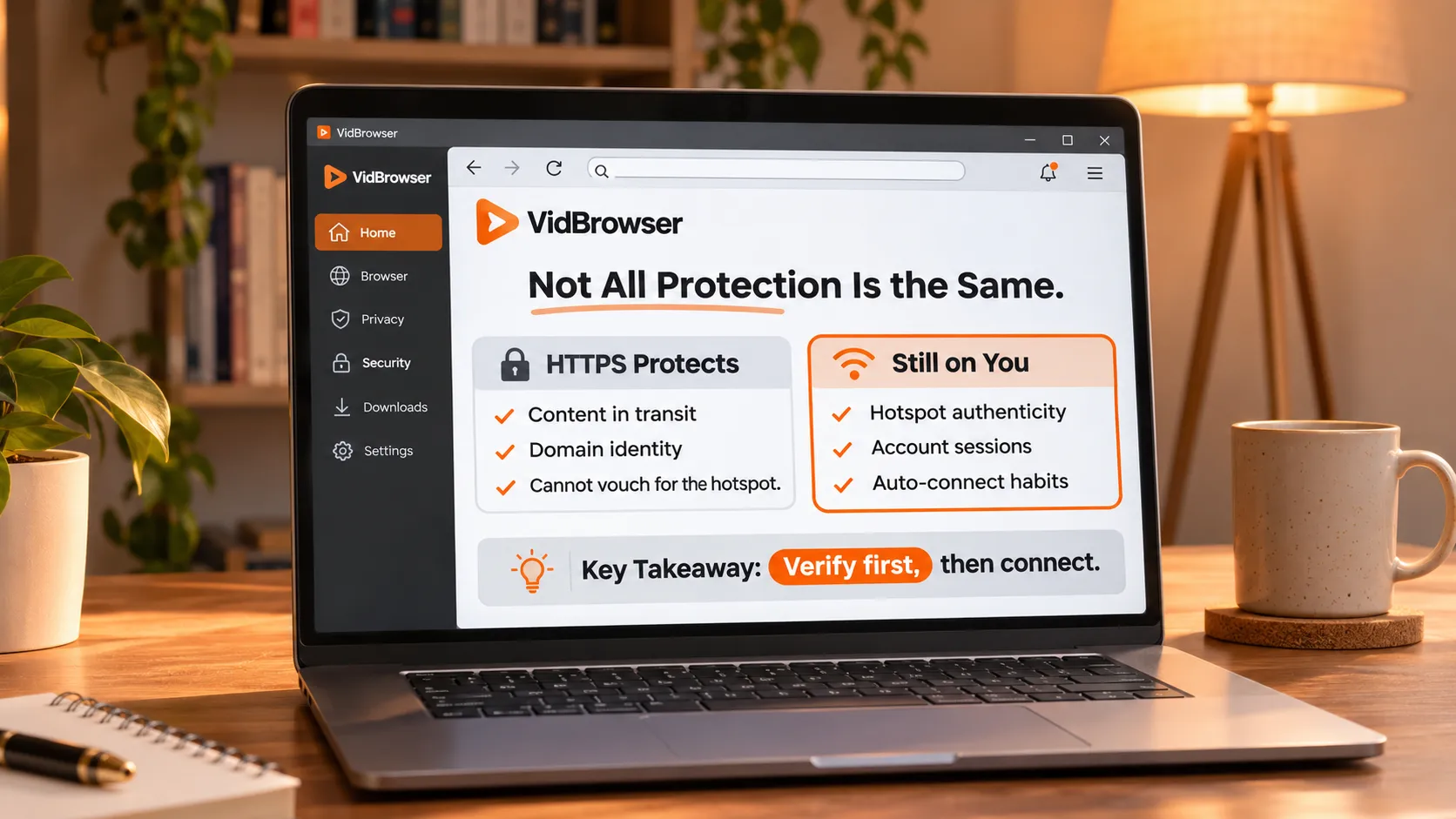
HTTPS protection has three boundaries, and the FTC page states each one: it encrypts traffic between you and a site, it verifies that site's domain, and it cannot verify the WiFi network you joined.The padlock only proves "the connection to this site is ciphertext"; it proves nothing about the hotspot being genuine, let alone the network environment being clean.
Phishing pages can wear HTTPS too — the FTC adds a dedicated line: scammers encrypt fake sites as well, and data sent densely to them stays theirs. The advice page also lists basic hardening: turn on two-factor authentication where possible, keep your system and browser updated. The account layer is covered in the OnlyFans account security guide; two-factor setup and phishing recognition hold on public networks the same way, so one mention is enough here.
The hotspot side of the risk has its own name: evil twin. An attacker sets up a hotspot named the same as or close to the official one, devices hop to the stronger signal automatically, and a counterfeit login page takes the email password. The FBI advisory covers this attack type, and the verification step is simple: confirm the hotspot name with staff face to face before connecting.
A hotel WiFi password governs access, not encryption
The FBI cybersecurity advisory for guests contains a line worth remembering: "This combination only governs devices accessing the hotel's network but does not provide a secure internet connection" — the room number plus password combo manages only who gets onto the network, not encryption.The advisory published by the FBI Internet Crime Complaint Center (IC3) also states: the hotel industry still has no unified WiFi security standard, and small hotels often leave passwords at the front desk unchanged for long stretches.
So "I typed the password and got on" is not a safety signal; it answers only the access question. When joining this kind of public hotspot, run through these steps in order:
- Verify the hotspot name with the front desk before connecting, and do not join any hotspot other than the official name;
- Turn off auto-connect on your devices, so your phone does not hop into a network with a familiar name;
- Move sensitive tasks to mobile data or your own hotspot — banking and password changes do not ride free networks;
- A VPN can carry over, but network-side troubleshooting starts with separating the channels: the VPN download failure troubleshooting covers how pages and videos may travel different routes; choosing one is covered in the VPN selection guide for OnlyFans with six criteria to compare.
Save what you want to watch before you leave, and skip hotspots on the road
The lowest-effort defense is landing content first: save the videos you want to watch to a local drive at home, play them offline on the road, and public hotspots never enter the picture — phishing and interception have nothing to land on.Use the VidBrowser video downloader for this pre-trip preparation; the workflow takes a few steps:
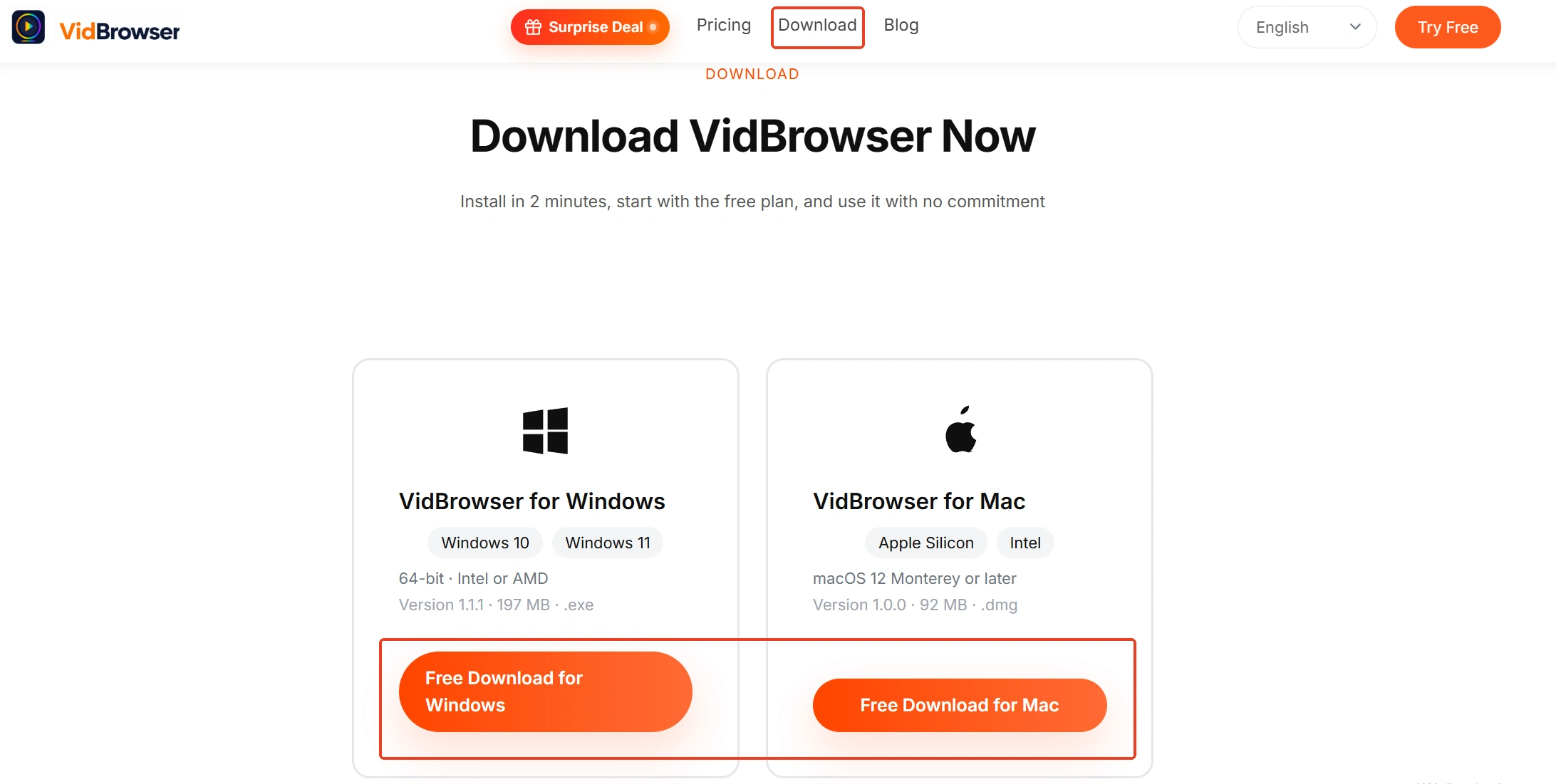
Step 1: Download and install VidBrowser
VidBrowser is a desktop video browser for watching videos, clipping segments and saving them locally on Windows and Mac, with built-in download and recording — installation takes minutes.
Step 2: Open the subscription platform in VidBrowser and log in
Log in to your account, find the videos you plan to watch on the road, and play a short segment to confirm loading works.
Step 3: Save with the recording feature (first choice for protected content)
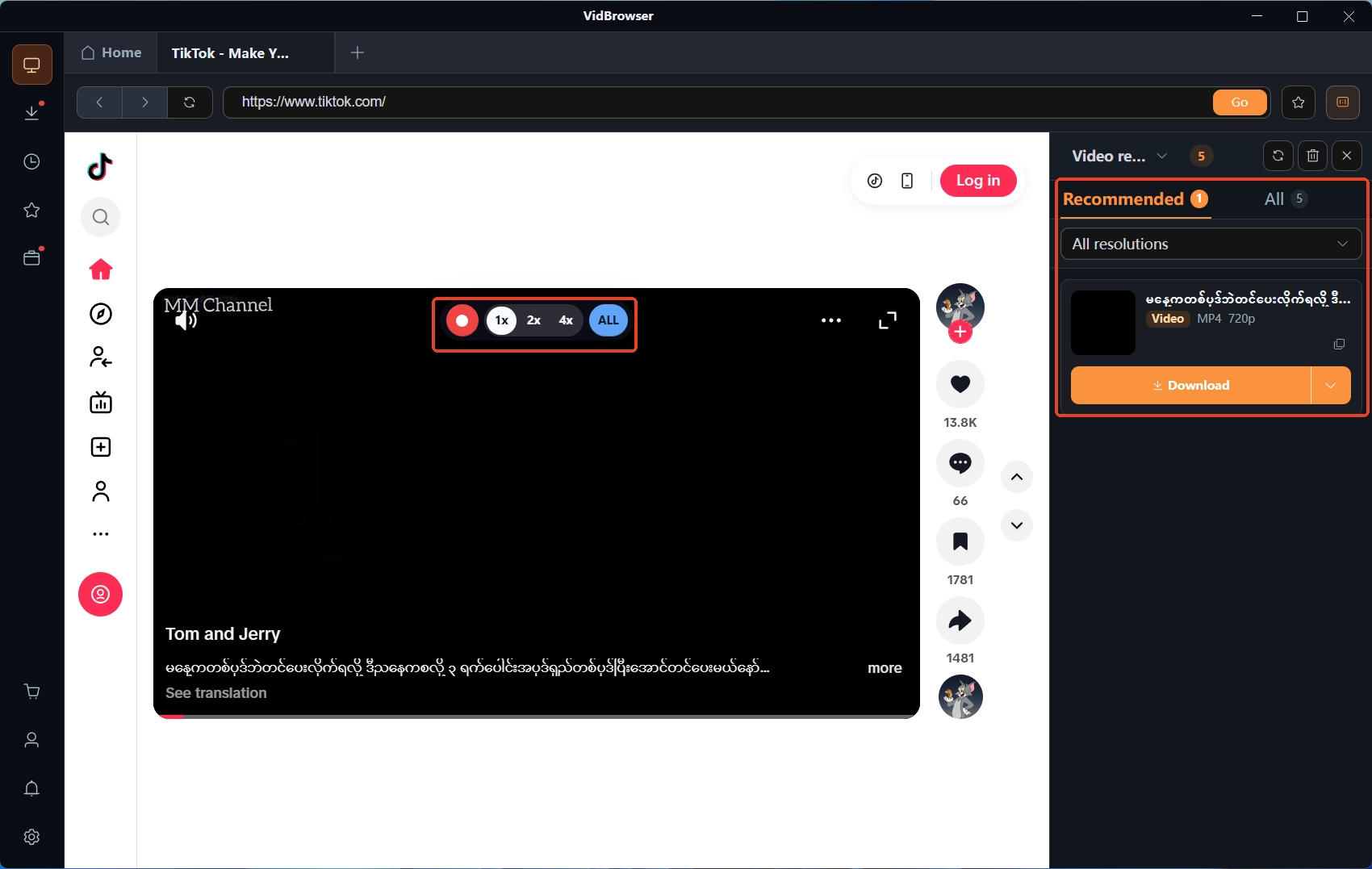
Most subscription platform videos are copyright protected and out of reach for ordinary download tools, so VidBrowser's recording feature is the dependable way to save: move the mouse over the video and a recording overlay appears — pick the recording speed (1x real time, or 2x and 4x to finish faster), click "Record All" to capture the whole video, and the record button on the left starts or pauses anytime; anything that plays can be recorded.
Step 4: Fill in with downloads where content is directly downloadable
If a video can be downloaded directly, the "Video Library" panel on the right also lists entries with an orange "Download" button — one click saves it as MP4 (you can pick the resolution first).
Step 5: Check the download history and confirm everything landed
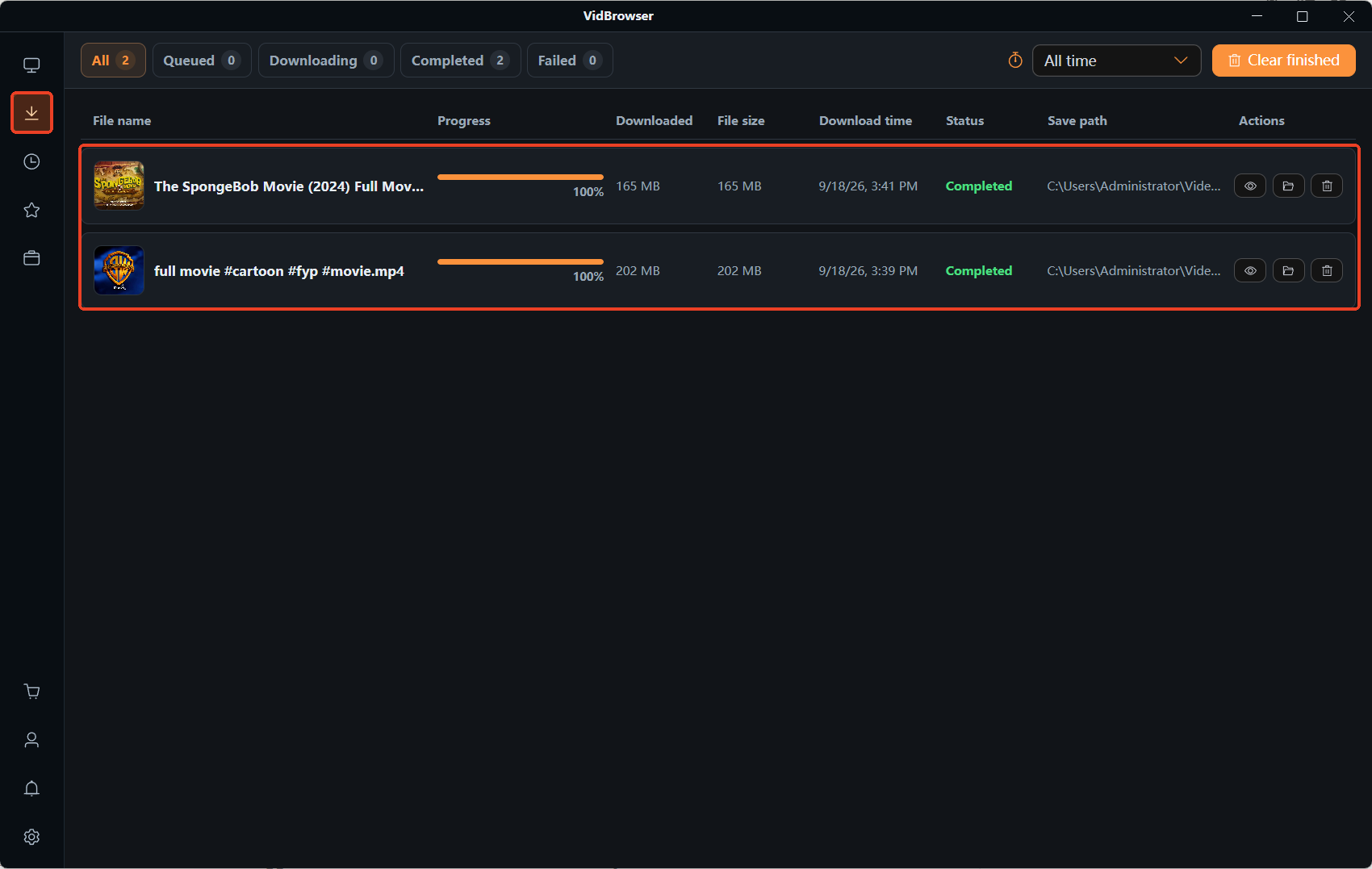
Open the download history from the clock icon in the left navigation, confirm each file name, size and status is complete, and on the road just open and play — no hotspot touched at any point.
Wrapping up
Two takeaways: content encryption makes browsing subscription platforms on public WiFi safer than intuition suggests, and the FTC's position is safe to cite; but hotspot authenticity and your login state sit outside encryption, so verifying the hotspot before connecting, disabling auto-connect, and moving sensitive tasks to mobile data are the highest-value defenses. Save what you want to watch locally first and play it offline on the road — public hotspots never get touched.
FAQ
Staying logged in forever — what happens on a public network
A login state carries credentials, and the longer the session, the more valuable it is to an attacker. Log out after using a public network, and pair that with two-factor authentication to keep credential theft damage behind a second door.
Mobile data or personal hotspot — which is the steadier choice
If you have your own data plan, prefer your own hotspot: it is a network you built, with the name and password in your hands, so the trust chain is complete. Leave public hotspots for low-sensitivity tasks like reading news.
Back home, you notice account anomalies — what comes first
Disconnect the device from every network first, then change the password and confirm two-factor authentication is on, and finally review login notifications for unfamiliar devices and locations; suspicious accounts get handled first.