YouTube says a video is unavailable: tell a site-wide loss from a local one first
When a saved YouTube video opens to a gray notice board, nine different causes sit behind it, each with its own governing party.The uploader acted, the rights holder set a limit, the platform ran a compliance action — and one cause is simply a broken address. Match the notice to its owner and self-check in order; that beats refreshing the page over and over.
An unavailable video starts with one split: down for everyone or just for you
The official troubleshooting page lists "This video is unavailable." among its common error messages, and its first suggested move is comparison: try another device, another network, or ask a friend in another region whether it opens.If others can watch and you cannot, the cause most likely sits on your side — region limits, age limits, account status; if nobody can open it, the cause sits on the video's side — deletion, private setting, takedown. Run this split first and the nine causes lose half their candidates:
- A broken address: the link got truncated, the ID is mistyped, or the short link expired — the video never actually opened;
- Uploader deletion: the author pulled it, the saved link remains, the source is gone;
- Private setting: visible only to invited accounts, the link alone gets you nowhere;
- Platform-wide tightening: pre-2017 old private videos were converted to private in bulk, covered below;
- Community Guidelines removal: the page states "Video removed: inappropriate content" outright;
- Legal takedown: executed by the platform after the rights holder filed a complete legal request;
- Content ID claim block: the rights holder blocked it worldwide or in some regions — the same link works for a friend and not for you;
- Region restriction: licensing agreements or local law, the notice often carries "in your country";
- Age restriction: you need to sign in with an age-verified account to watch.
The error text is the first clue — match four kinds of wording to their owners
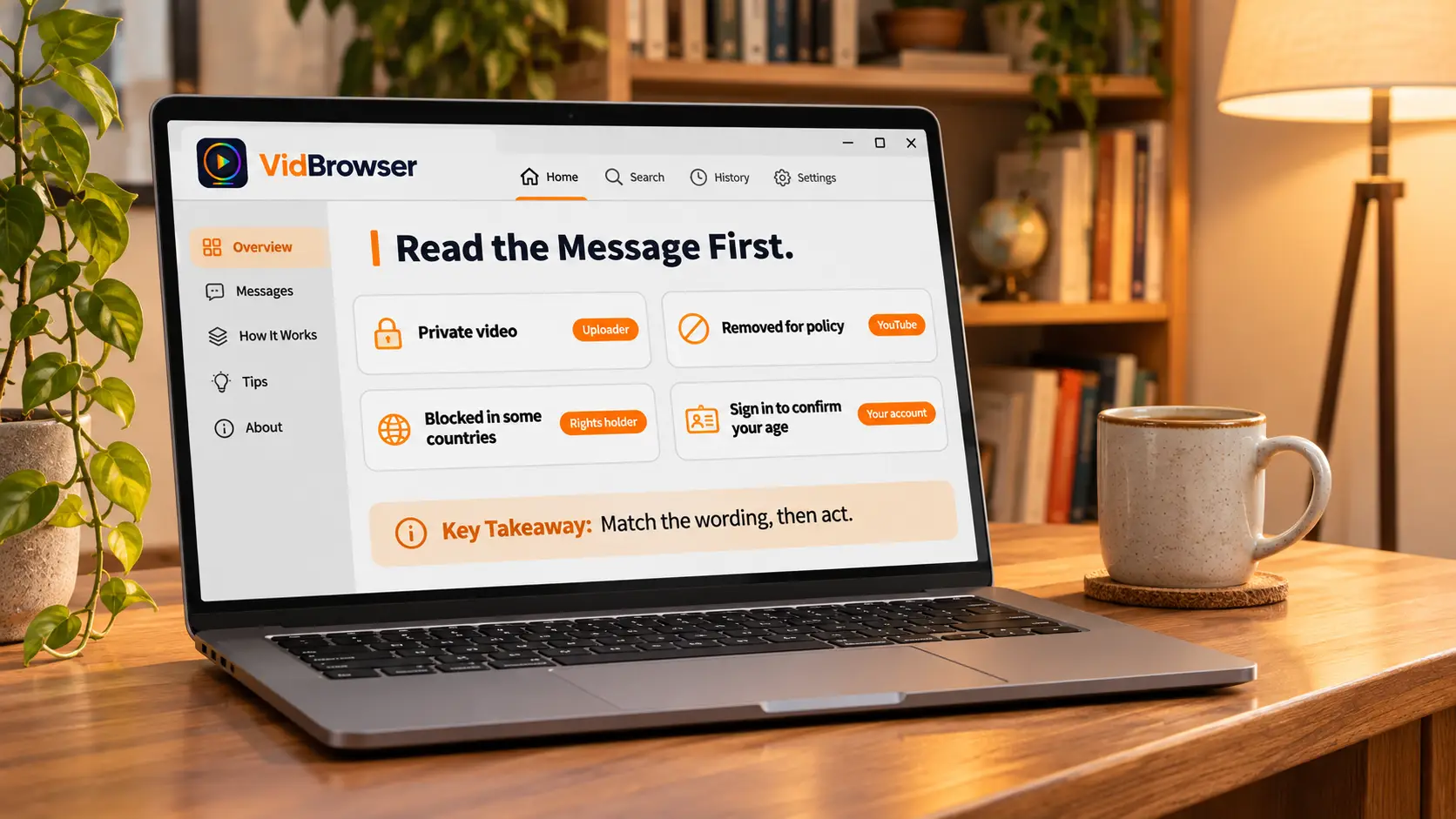
The notice itself carries diagnostic information, and the official removal troubleshooting page assigns a fixed meaning to each wording.The official video removal troubleshooting page lists labels including: "Video removed: inappropriate content" maps to a Community Guidelines violation; "a violation of the Terms of Service" maps to a terms or copyright removal; "includes copyrighted content" is a Content ID claim, split into muting, a worldwide block, or a block in some regions; "copyright video removal" means the rights holder filed a complete legal request and the platform executed it. Trademark issues get their own label.
Beyond copyright there is one temporary state: during rare service interruptions YouTube loads a stripped-down watch page — playback fails, but the title, channel name, and upload date remain; the official note calls such states temporary, and a refresh a bit later usually settles it.
Pre-2017 private videos were quietly converted by one security change
There is a historical cause behind dead saved links that is easy to misread: in 2021 the platform converted private videos uploaded before January 1, 2017 to private in bulk, unless the uploader had chosen to keep them.The link did not change, yet the page now shows the gray board; many people read it as deletion when the visibility was simply tightened — the easiest of the nine to misjudge as "deleted", and it has nothing to do with decoding, networks, or devices.
The fate of these videos is not in the viewer's hands. What you can check is the creator's channel video list: title gone, most likely converted or deleted; title present but unplayable, a permissions-class restriction. If you want to keep old content on file, handle it early — do not wait for the next platform action.
Copyright blocks have two layers: Content ID claims and full legal takedowns
Both paths come from the rights holder, but the outcomes differ widely: a Content ID claim can block a video in some regions, while a full legal takedown removes it from the platform outright.The first explains the classic "my friend can watch it, I can't" scenario — the rights holder sets the block range by regional licensing, so the video lives in some countries and vanishes in others with no reason shown; the second is a hard takedown that fails worldwide without exception, usually with a copyright warning. Music, film and TV, and sports broadcasts licensed by region trip the first layer most easily.
These two layers are a different matter from why streaming videos can't be downloaded: that article covers the technical side where the complete file cannot be captured; this one covers the permissions layer that simply refuses to show the page. Telling the layers apart saves wasted effort.
While the video still opens, save a local copy as you go
Seven of the nine causes end at "the page is gone for good", so if the video still opens now, saving a local copy on the spot is the steadiest move.Use the VidBrowser video downloader for this save; the workflow takes a few steps:
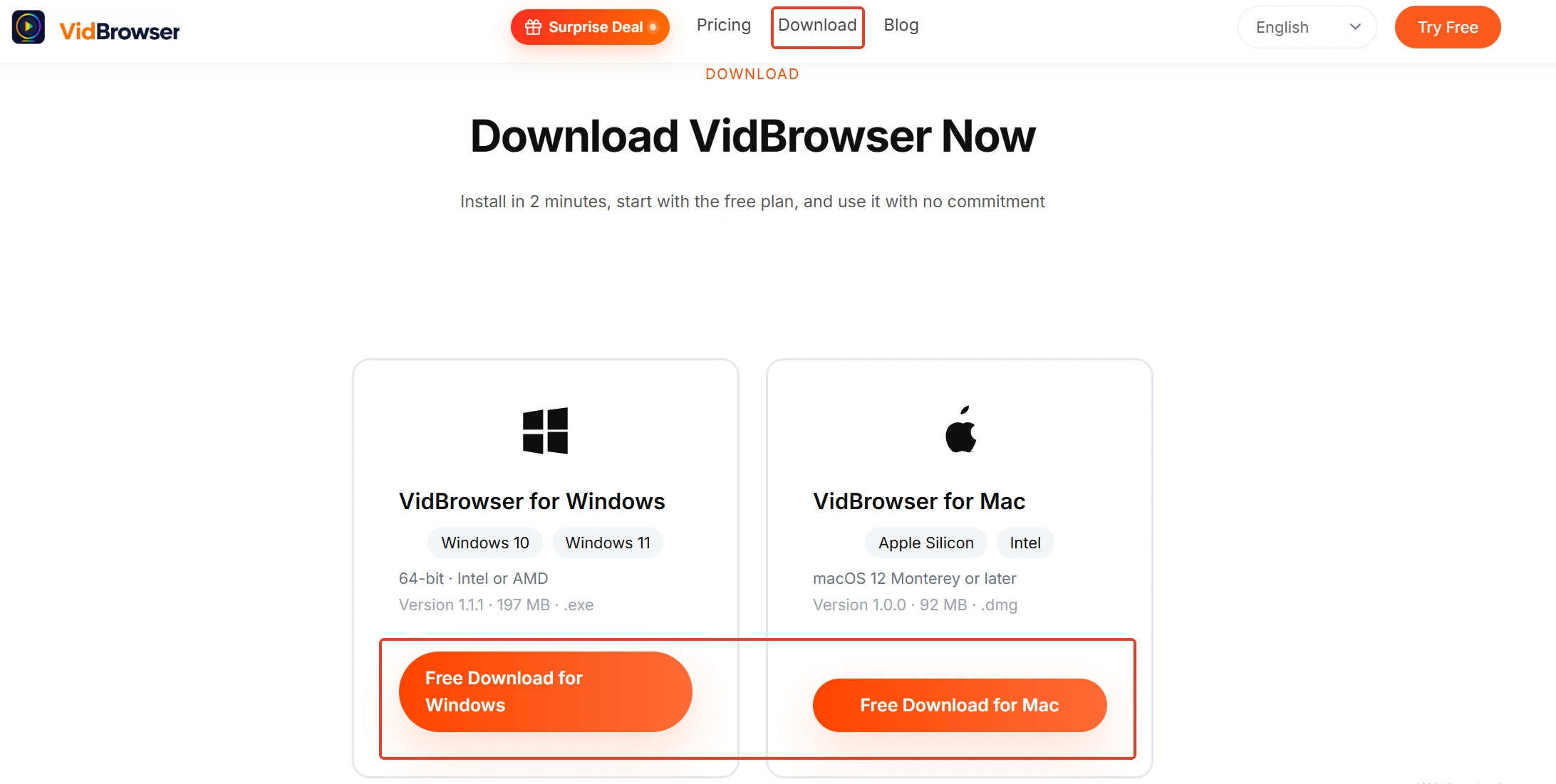
Step 1: Download and install VidBrowser
VidBrowser is a desktop video browser for Windows and Mac that plays videos, clips segments, and saves them locally, with downloading and recording as its two core features; installation takes a few minutes.
Step 2: Open YouTube in VidBrowser and play the target video
Open the video that still plays, and let it run briefly to confirm loading is normal.
Step 3: Prefer the download button for a direct save
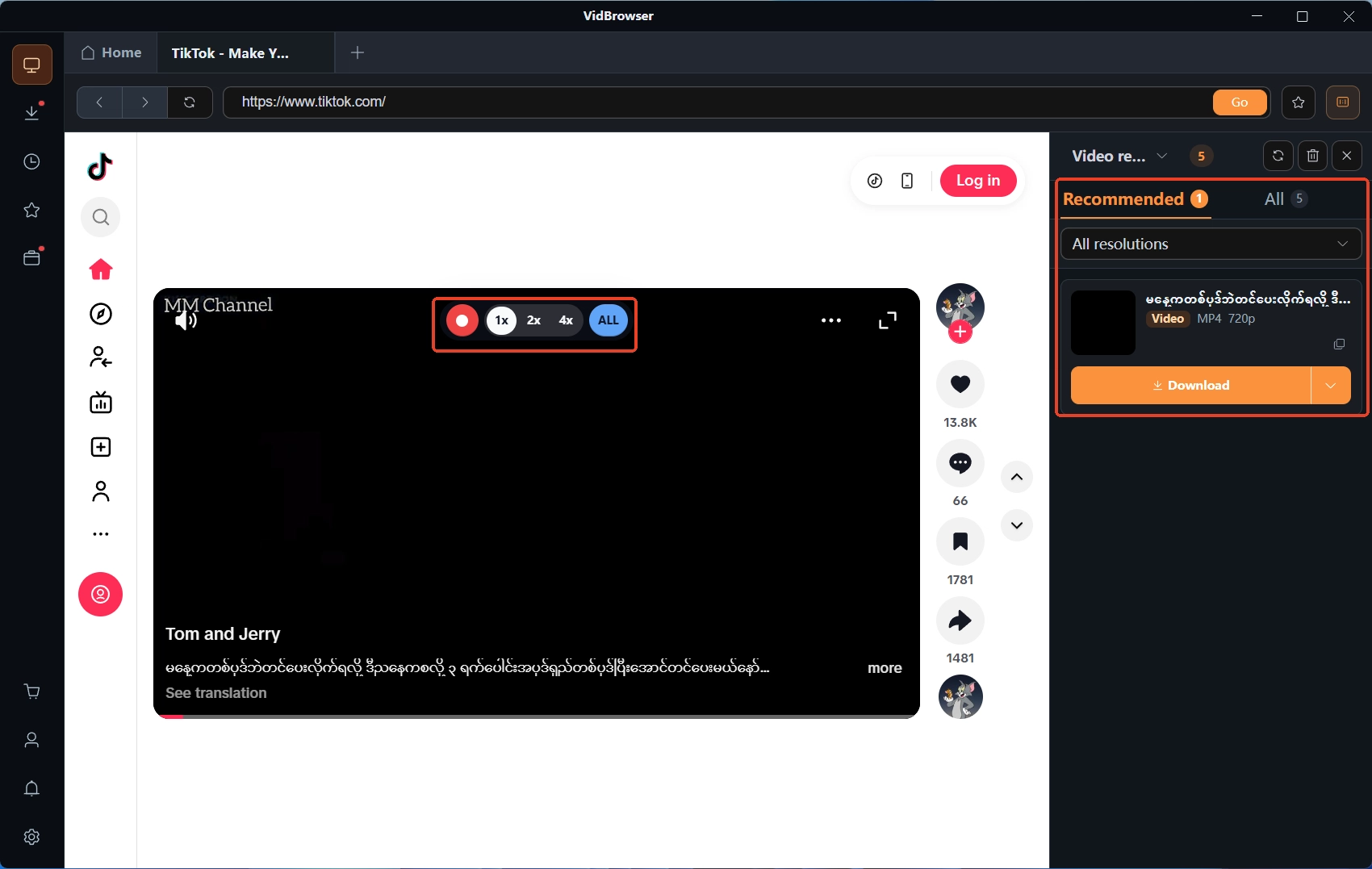
The "video library" panel on the right lists detected video resources, each with an orange "Download" button; one click saves it as MP4, and you can pick the resolution in the filter before downloading.
Step 4: Fall back to recording when download is unavailable
For entries that cannot be downloaded directly, moving the mouse over the video overlays the recording controls — pick a recording speed (1x real time, 2x or 4x finishes faster), click "Record All" to capture the whole video, and the recording button on the left can start or pause at any time.
Step 5: Verify the result in download history
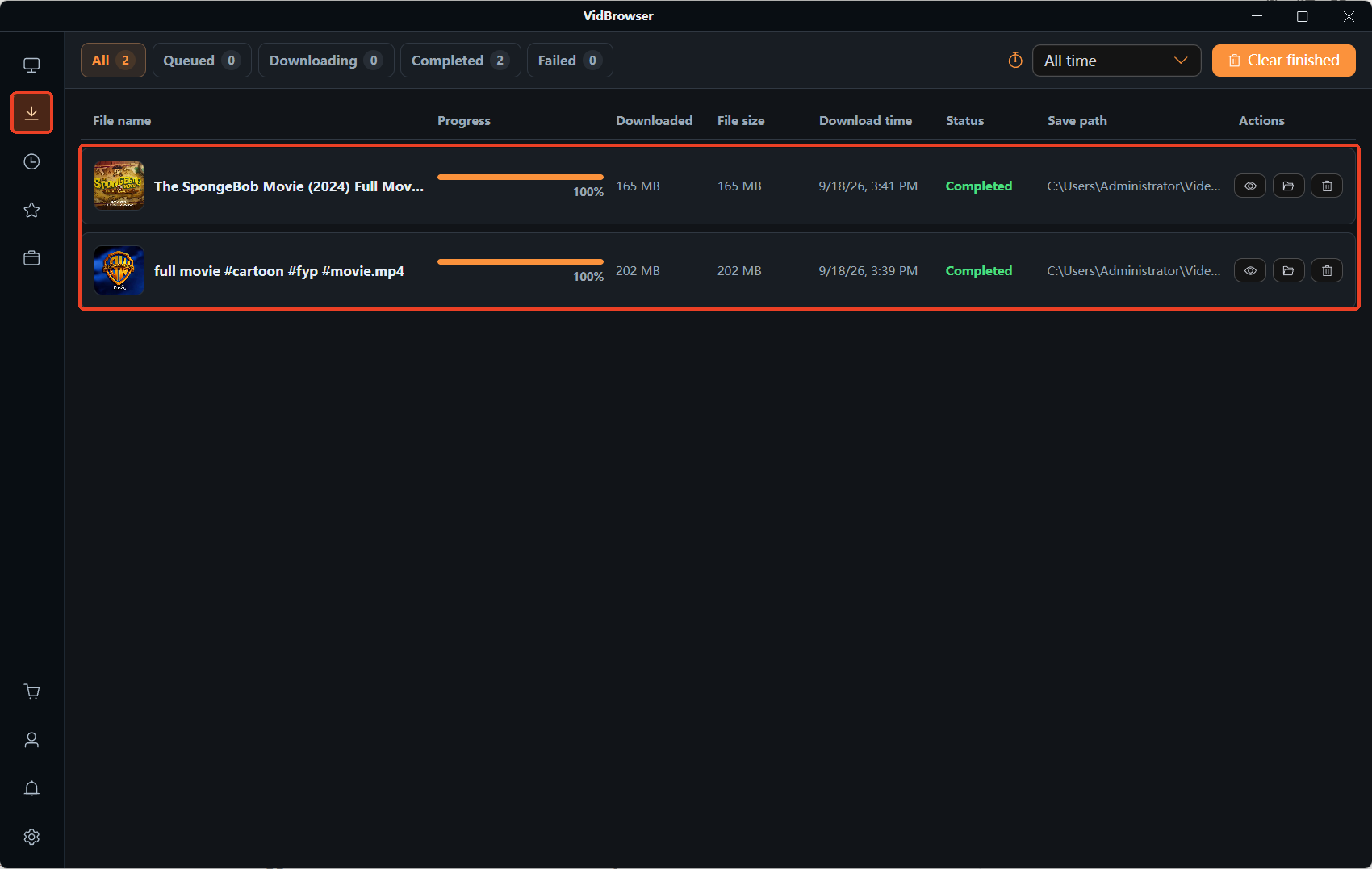
The clock icon in the left navigation opens download history; confirm the file name, size, and status are all complete — however the page changes later, the local copy stays.
Wrapping up
Two takeaways: run the split first — others can watch, check your side; down for everyone, check the video's side — then read the error text to find the governing party, and never misread "permissions tightened" as "deleted". Saving a local copy while the video still opens is the cheapest insurance; content that expires, like live replays, especially deserves it — how to save YouTube live replays lists five situations where replays disappear.
Frequently asked questions
Can a deleted video be recovered
Uploader deletions and copyright takedowns leave no viewer-side recovery path; archive sites sometimes keep a page snapshot but never the video itself. What you can do is check the creator's channel for an official re-upload, or contact the uploader for a fresh link.
It will not play embedded on another site, but it opens on YouTube — what is going on
The typical cause is that the uploader disabled off-site embedding, or the video carries an age restriction — the official troubleshooting page notes that signed-out users may not be able to watch some content. Click "Watch on YouTube" on the player to open the source page, which usually confirms the problem sits in the embed layer.
Can a region restriction be confirmed
Switch to mobile data, another device, or ask a friend in a different region to open the same link. Another approach is to save the content locally while it still plays; offline viewing arrangements are covered in where YouTube Premium offline videos go.