Saving an Instagram Live Follows Two Sets of Rules: Hosts Get Three Exits, Viewers Record
Want to keep an Instagram Live you watched with VidBrowser, start with one question: did you host the stream, or are you watching someone else's. The official saving tools sit almost entirely with the host, and the viewer side has no download button at all — the two sides run on two sets of rules. Sort that out first before you try anything, or the effort goes nowhere.
The dividing line in saving an Instagram Live: which side of the room are you on
Instagram puts the official saving power on the host side; viewers get no native download entry.The Live section of the official Help Center says it plainly: download the video to your phone's gallery, share the replay as Reels, keep it in the live archive — the subject of all three actions is the host. The viewer guidance covers watching, commenting and reporting; the word save never appears. A live is treated as an here-and-now event — whoever owns it owns its file.
The host's three official exits, each with its own window
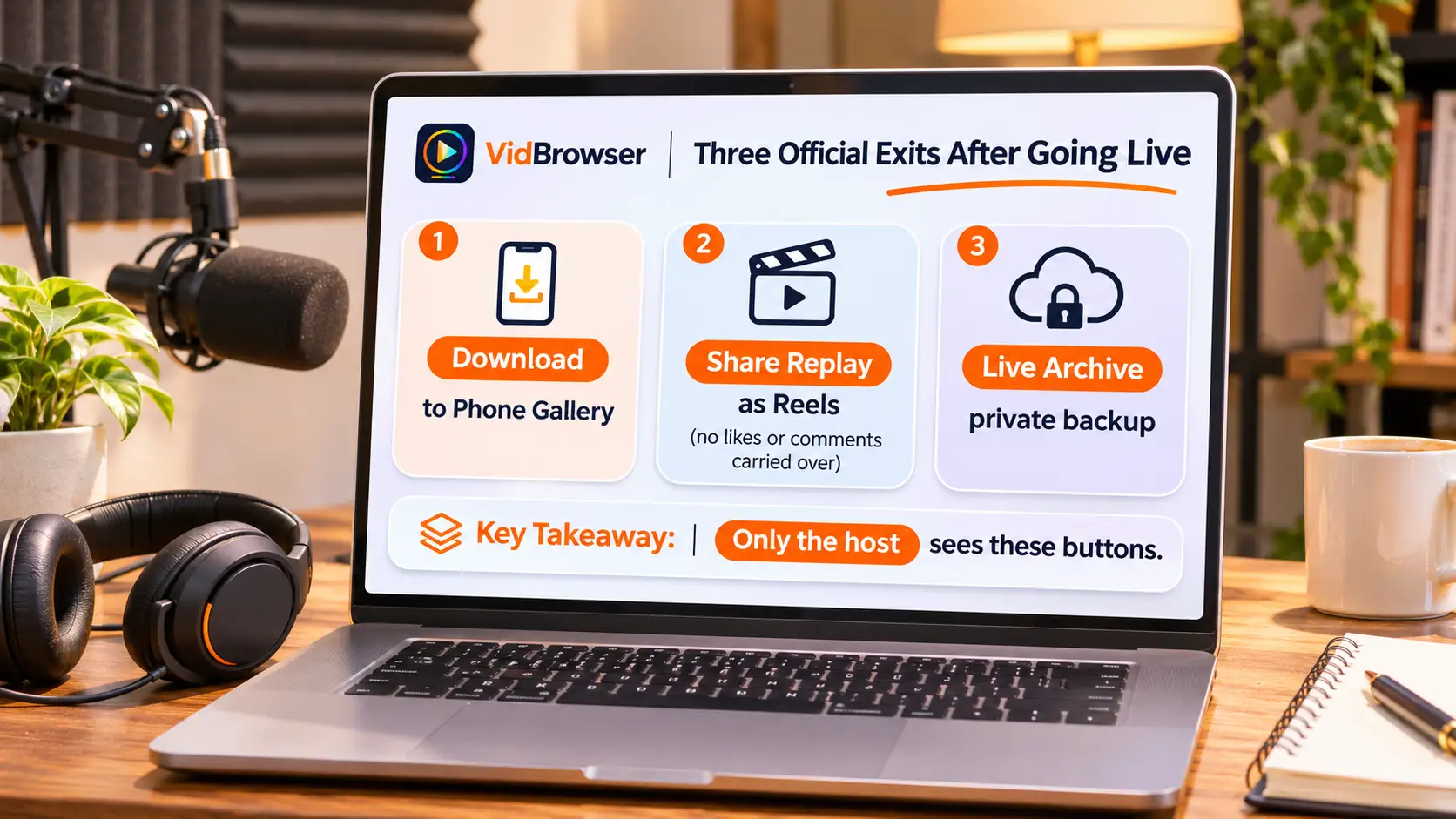
Once the stream ends, the official side offers three exits.Per the Instagram Help Center, the three exits are:
- Download the video: the download option appears right after the stream ends and the whole live lands in your phone's gallery; the option shows up immediately, and saving a long stream may take a minute.
- Share as a Reels replay: publish the replay to your profile and feed so followers rewatch it like any Reel; the replay is public content and its view count starts from zero.
- Live archive: with Save live to archive turned on, every stream lands automatically in an archive only you can see, ready to re-share or re-download later.
The three exits split the work: download handles "keep a copy now", replay handles "let people see it", archive handles "change your mind later". The first one is where things go wrong — plenty of hosts swipe away the very screen that pops up when the stream ends; if the archive is off too, that stream is gone, and the official side offers no recovery entry. Instagram never gave viewers a public VOD the way Twitch live replays do, so the host archive is the last line of defense in the whole chain — confirm it is on before you go live.
What gets saved is the video, not the whole room
The official saving notes state clearly: download and replay keep only the video itself — comments, likes and viewer counts stay out.The comments scrolling during the live, the hearts, the live headcount all remain inside Instagram's service and do not travel with the file. The replay behaves the same — the official notes say a replay does not include the original likes and comments, the viewer count restarts from zero, and you cannot trim it before sharing; it goes out exactly as recorded.
For hosts that is two reminders: if you want the questions asked in chat inside the file, repeat them out loud during the live; if you want the replay page to look alive, rewrite the caption when sharing — a replay starts at zero and inherits none of the live's heat.
The hosting threshold and the four-hour cap push most people to the viewer side
Instagram sets a threshold for going live, which hands "keeping a live" to the majority — and what they want to keep is someone else's stream.The official Live Help Center states that a public account with at least 1,000 followers is required to go live, and teen accounts are off by default. If you cannot host, the host-side exits are out of reach. Mobile streams also carry a cap of about 4 hours per session and cut off automatically (per Gyre's live streaming guide).
In archiving terms: the 4-hour cap sets a ceiling on a single file, so recording a whole session works; the hosting threshold pushes most users to the viewer side — the answer is in the next section.
How viewers keep one: download the replay, record the real-time stream
Viewers have two workable paths: if the host posted a replay, treat it as a Reel and download it; if the live is running or no replay exists, record the real-time stream.The replay half is fully covered in the Instagram Reels saving guide — follow it as written; for real-time recording:
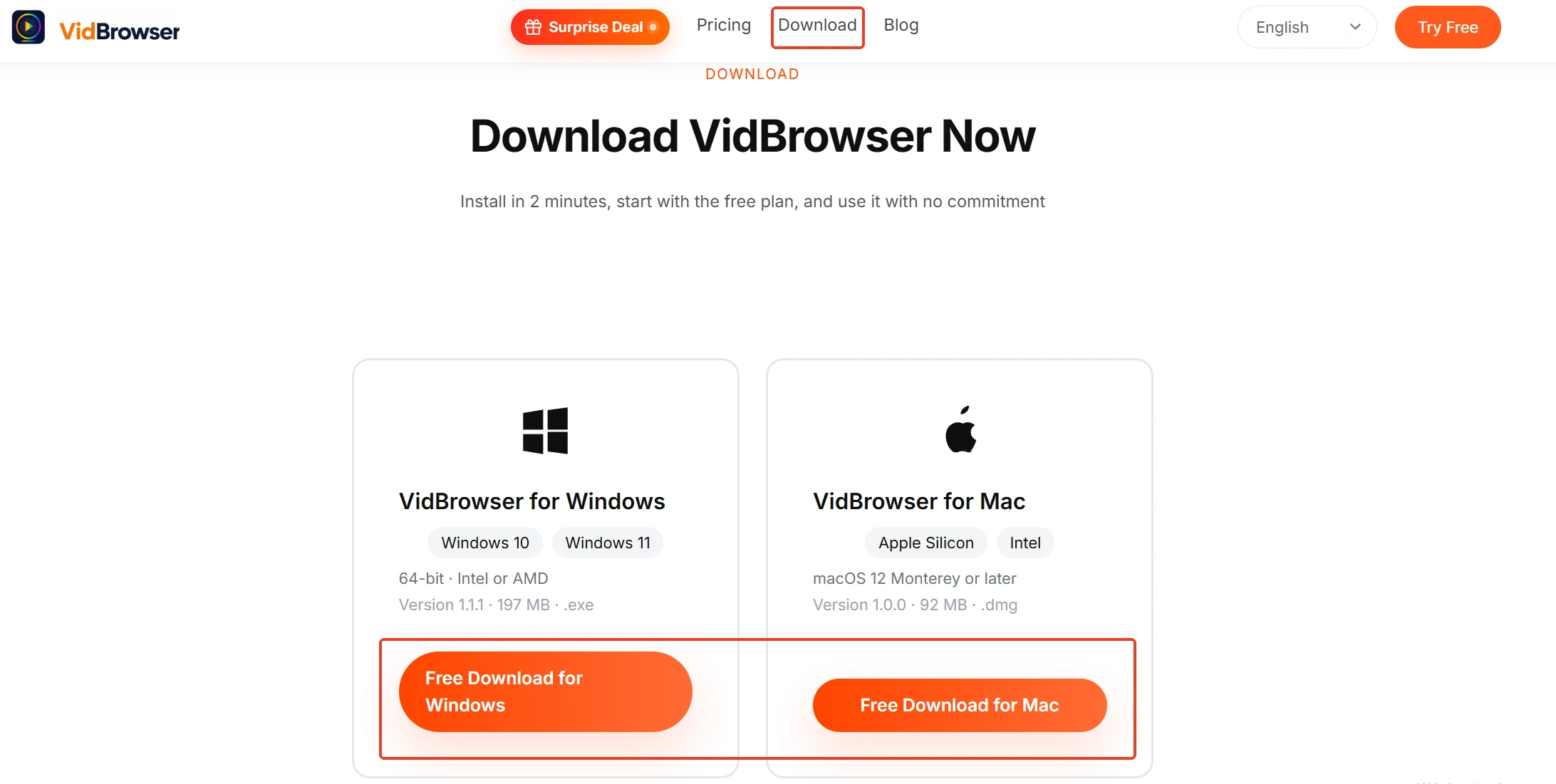
Step 1: Download and install VidBrowser
VidBrowser is a desktop video browser built for watching videos, clipping moments and saving them locally on Windows and Mac, with download and recording built in. Installation takes a few minutes.
Step 2: Open Instagram in VidBrowser and sign in
Type the Instagram web address into the address bar and sign in. Private streams appear only after signing in; public streams are visible without an account.
Step 3: Enter the live room while it is running
Open the live from the Live badge on profile avatars or the top of the feed; let the picture play a few seconds until the stream is steady.
Step 4: Record the real-time stream, download the replay
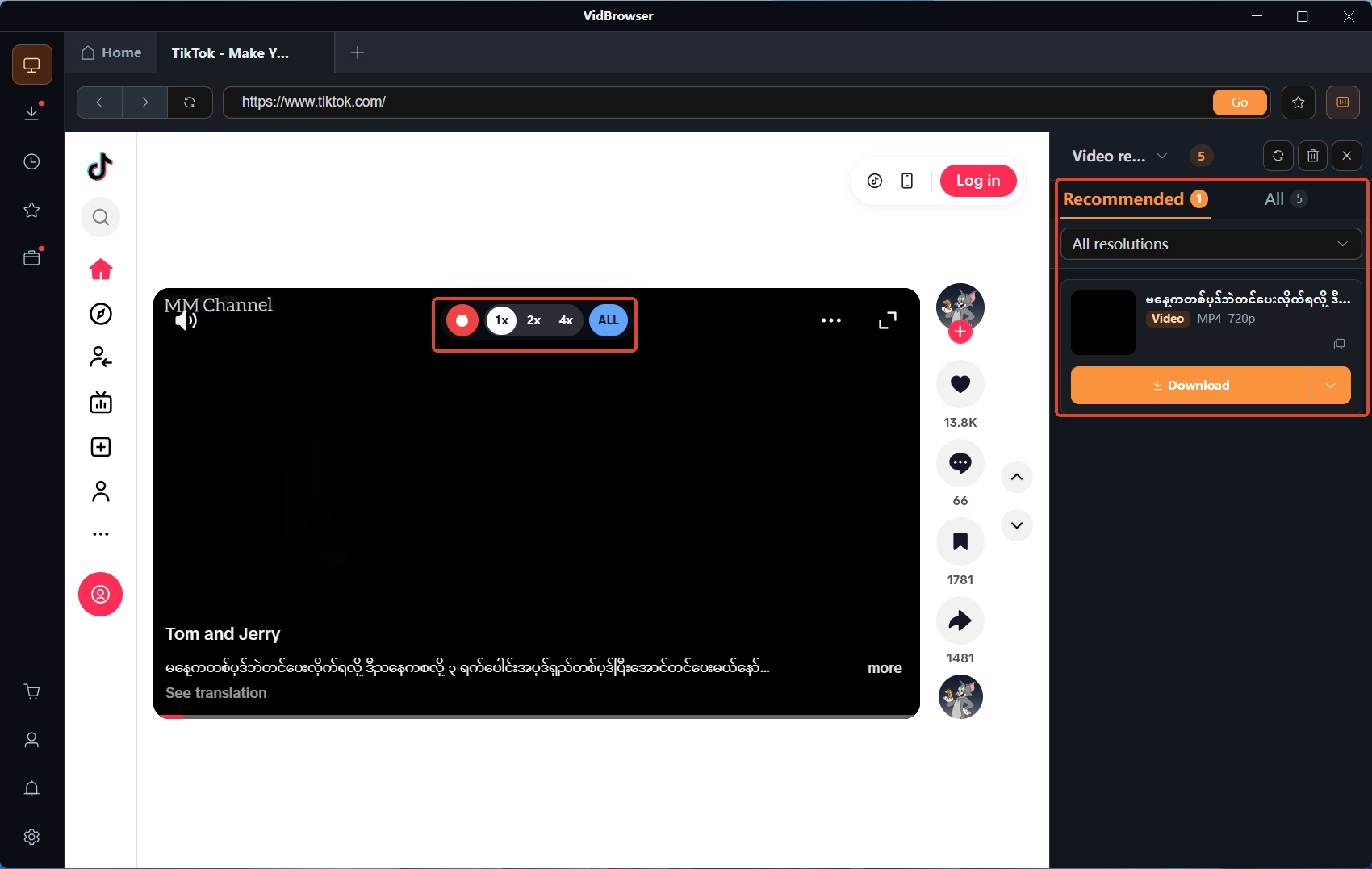
A running live is a stream with no file to grab — move the mouse over the video and the recording controls appear; pick a recording speed (1x real time, 2x or 4x to finish faster), hit Record All to capture the whole session, and the record button on the left pauses anytime; stop when the stream ends. Once the host posts a Reels replay, it turns into downloadable content: the Video Library panel on the right lists entries with an orange Download button, one click saves the MP4. Check everything in Download History on the left and confirm the full session by file size.
Draw the line clearly: keeping someone else's live for personal use is fine; re-uploading, reposting or editing it for distribution steps outside personal use.
Final thoughts
Instagram Live saving comes down to two sentences: hosts should not gamble on the end screen — turn the archive on first, tap download first, since replay and file are two separate lives; viewers should stop hunting for a button that does not exist — download the replay as a Reel, record the live while it runs. Along with stories saving and Reels, Instagram content all runs on its own windows — other platforms count in days, this one counts in minutes.
FAQs
Missed the download button when the stream ended — can that live still be recovered?
It depends on the archive switch. With Save live to archive turned on, the stream lands automatically in an archive only you can see, ready for later download and sharing; with the switch off, the official side offers no recovery entry. Confirm it before your first stream.
Is the shared replay exactly what viewers saw during the live?
No. The official notes say a replay excludes the original likes and comments, the viewer count restarts from zero, and it cannot be trimmed before sharing. To keep the chat interaction, repeat it out loud during the live — the file level cannot carry it over.
Can I save my own live to a computer?
The official download button saves the live to your phone's gallery. To keep a copy on a computer: transfer the gallery file over, or post the replay as a Reels after the stream and use VidBrowser on the computer to download it as an MP4 — no cable needed.