The video is playing but the media list stays empty — detection listens, it doesn't search
You installed the tool, the video is plainly playing, and yet the media list on the right side is empty. Switch pages, restart the app, try another computer — the same nothing. The list is built by listening to requests, not by hunting for files, so if the player never really pulls the stream, nothing on the tool's side can hear it. Let's pull apart the different ways that "nothing to hear" happens.
A tool can't detect video because it listens for requests, it doesn't go looking for files
What the tool does is sit on the page's network traffic: every time the player fetches data, that request gets recorded, and the list is simply a roll-up of those records. It does not sweep the page looking for a video file, because a streaming page has no such file to find. An empty list means nothing was heard — not that nothing was found.
Two things have to line up at once before an entry shows up.
- The player actually starts pulling the stream: parked on a poster frame, twitching when your cursor sweeps past, or an autoplay that got blocked — none of those count.
- The request goes out from somewhere the tool can hear: if the player is nested inside another frame, it can't.
Miss either one and the list stays empty. Why a streaming page has no ready-made video file on it is taken apart in why streaming videos cannot be downloaded; here we pick up the listening side of the story.

If the player never really starts pulling the stream, the list stays empty
The most common empty list isn't broken at all: the picture is moving, but the player never actually fetches data. Poster carousels, hover previews and muted autoplay widgets all give you the impression that something is playing.
- Hover previews and poster carousels: those few seconds of motion as your cursor passes are usually an image rotation or a very short teaser clip.
- Autoplay blocked by the browser: before you have clicked on the page, autoplay with sound is usually refused — MDN's autoplay guide goes through the details; once refused, plenty of sites simply don't retry, and the picture just sits there waiting for a click.
- The player hasn't been created yet: feed pages only build the player once you scroll it into position, and until then there is no object to pull a stream from.
- There is a gate in the way: until sign-in or an age check is finished, no stream request goes out.
All four come down to one action: play the video for real and let it run a full five seconds before you look at the list again. That beats refreshing — a refresh doesn't produce a stream request.
Once the player changes how it draws the picture, the tool falls behind
The picture is playing and the stream really is being fetched, and the list can still be empty — what the tool hears no longer looks like anything it recognises. Web players these days rarely put a ready-made file on the page; instead a script assembles segments in the browser's memory and feeds them into the display, which is why the browser defines a dedicated interface for exactly this — the opening lines of the W3C Media Source Extensions spec set out what it is for.
- The player is nested inside another frame: the whole playback area is served from a different address, and the stream request goes out from that layer.
- Segment addresses carry no ordinary extension: there's no familiar media marker at the end of the URL, so rules that judge by extension skip straight past it.
- The request gets taken by the page's own cache layer first: the page holds the data with an offline mechanism and hands it to the player itself, leaving the network layer quiet.
None of these are faults; they're the edge of what "listening for requests" can reach. The same tool still works normally on other sites, and that doesn't make this one broken.
One quick yes-or-no check: is any media request sent while it plays?
One thing settles whether the fault sits with the page or with the tool: whether any media request goes out during those few seconds of playback. Press F12 for developer tools, switch to the network panel, filter it to media, and watch for entries that appear while it plays — click play once and let it run a full five seconds.
- Not a single one: the player isn't pulling a stream, so the problem is on the page side — go back to the two sections above and see whether it never really played or got blocked.
- Requests show up but the list is still empty: the stream is being fetched and the tool isn't hearing it, so the problem is on the tool side — that's when switching approach earns its keep.
One thing worth saying plainly: these addresses are no use, and you shouldn't try to use them. With segmented content, a single entry won't assemble into a playable file. And keep the subject straight — what we're checking here is a stream that never starts at all; the slowness and stalls that come after the progress bar moves are a different problem, covered in how to speed up a slow download.
When the list is empty, save what you want to keep to your computer
Detection waits on a request, while recording doesn't care about requests at all — it works off the picture, so as long as the picture is genuinely moving, none of the "can't hear it" cases above will get in its way. Saving content to your computer with VidBrowser takes four steps:
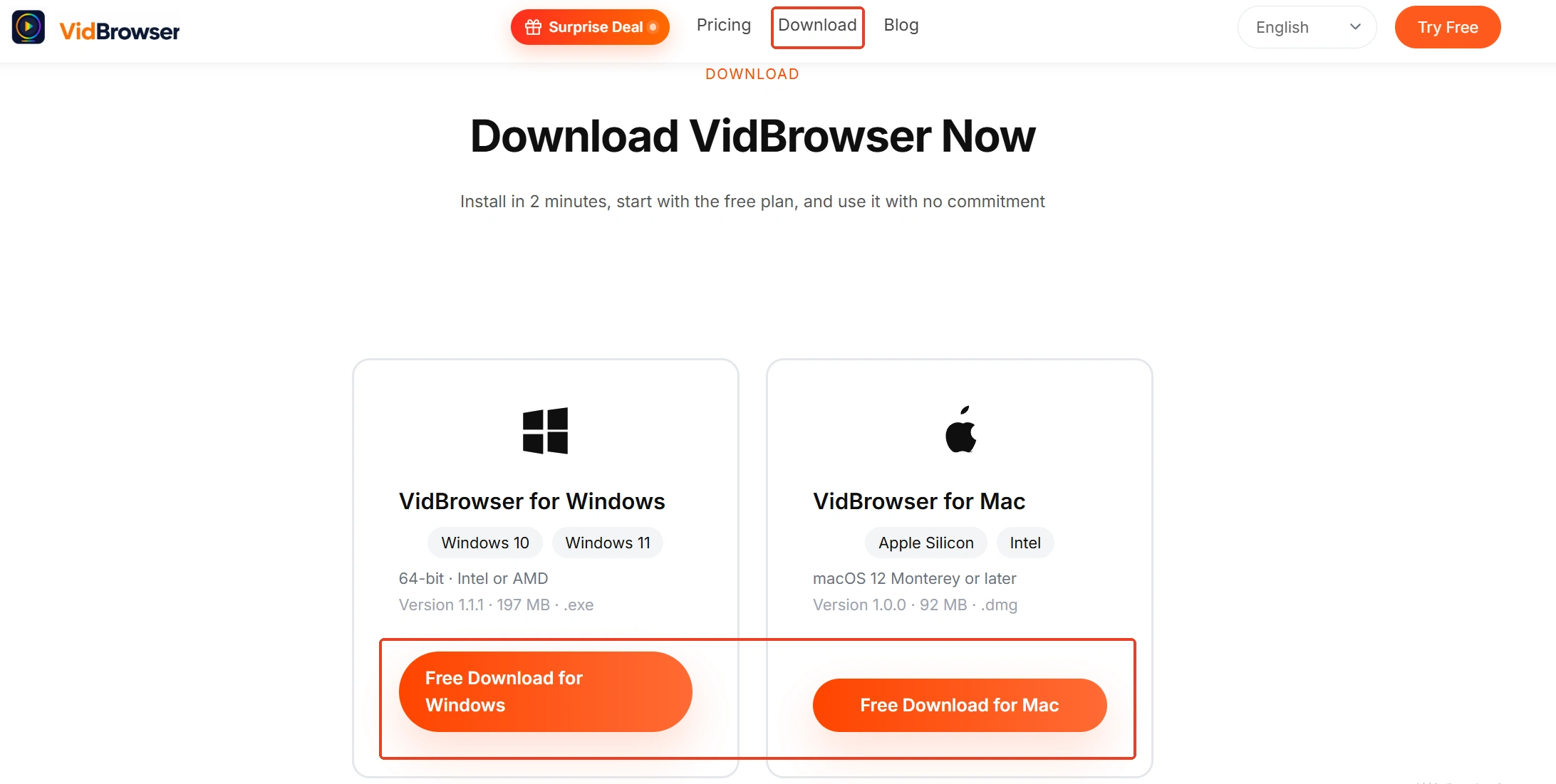
Step 1: Download and install VidBrowser
VidBrowser is a desktop video browser for Windows and Mac with download and recording built in. No extension needed to listen on its behalf, and installation takes a few minutes.
Step 2: Open the target page in VidBrowser and get the video genuinely playing
Sign in with your own account, browse normally, then click play once and let it run a few seconds. That's the step where you can reproduce the yes-or-no check above.
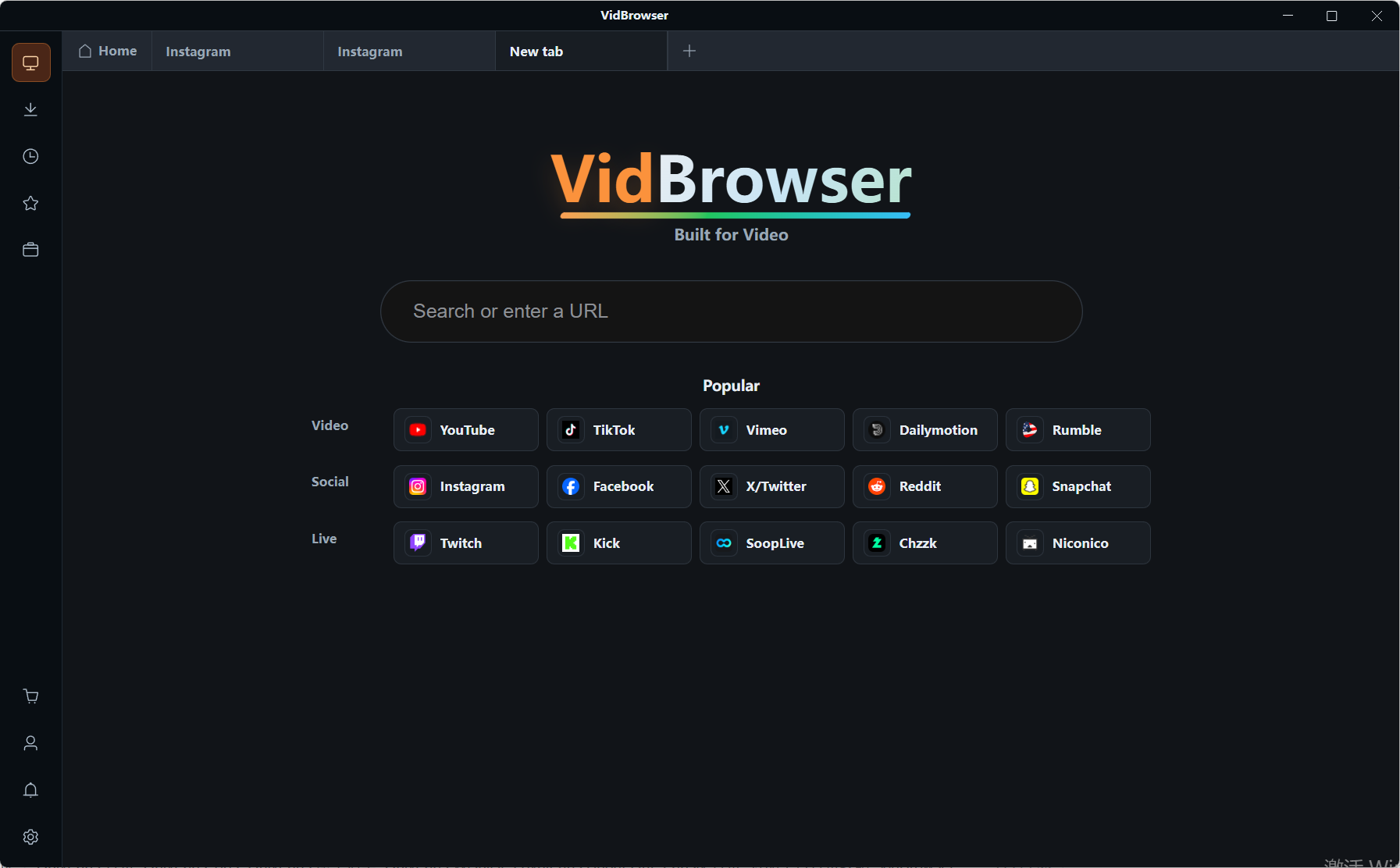
Step 3: Check the media list on the right for an entry first
If there is one, pick a resolution and hit that orange Download button to save it as an MP4.
Step 4: Nothing there? Switch to recording
Hover over the picture and the recording controls appear: pick a speed (1x real time, or 2x and 4x to finish faster), hit Record all to capture the whole thing, and the button on the left starts or pauses whenever you like. Protected content, live streams and all those "can't hear the stream" cases above live in this step. Finished files turn up in Download history on the left, and account status has no bearing on them.
These never had a downloadable source — stop waiting for an entry
If you've walked through every step and the list is still empty, it usually isn't a fault any more: there was never a downloadable source to begin with. An empty list is the correct result.
- The segments themselves are encrypted: the requests are audible, but the assembled file won't play — content like this is kept with recording.
- Live streams: generated and sent from the very first second, so there is no such thing as "one complete file" — what you hear is a continuous data stream.
- The picture is drawn by a script: the whole thing is painted frame by frame onto a canvas, no media data exists on the page at all, and there's nothing to fetch.
The approach that doesn't depend on whether a file exists is recording. An empty list doesn't mean it can't be done — it means the door has moved.
Frequently asked questions
The video plays perfectly well, so why is there still nothing in the tool?
Because detection listens for stream requests, not for whether the picture is moving — hover previews, a blocked autoplay and a player nested inside another frame all make the picture move while the request stays inaudible. Click play once and let it run a few seconds.
The same site detected fine yesterday and comes up empty today. What changed in between?
Most likely the page changed how it draws the player. After a site upgrades its player or switches to a different address format, the old rule can fail the same day — that's a separate matter from whether the tool is broken. The order to work through is in what to do when a downloader stops working.
Can I take those addresses I see in developer tools and download from them directly?
Mostly no, and it isn't advisable either. Segmented content is assembled from dozens or hundreds of little pieces, and a single entry doesn't make a whole. If you want a copy, recording is the more direct route.