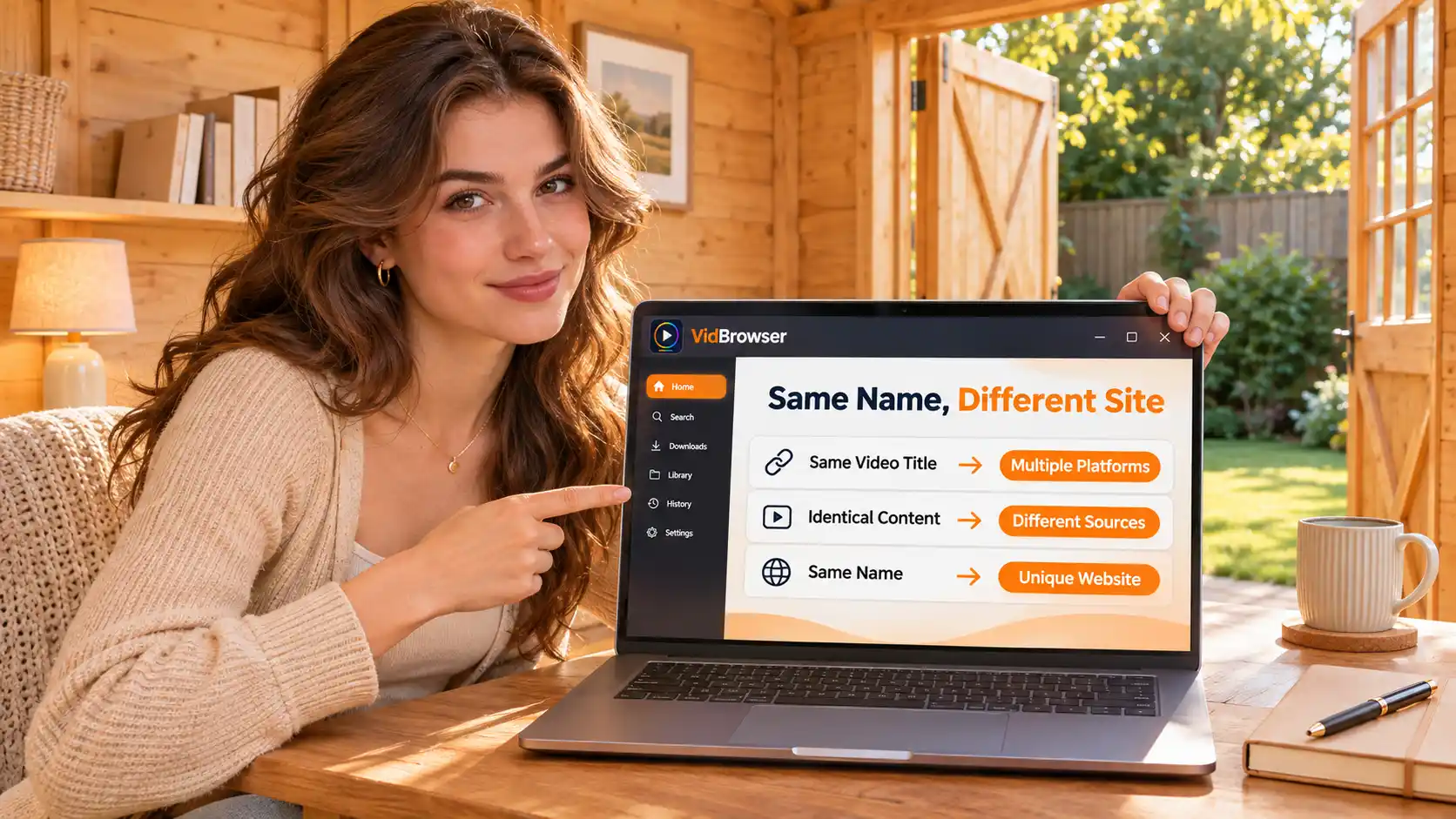
Downloaded video not showing in your phone gallery? Locate the file first, then one system step
You move a video from the computer to your phone, the file manager shows it plain as day, yet the gallery comes up empty - do not rush to transfer again, the file is almost certainly sitting right where you left it. The problem usually lives on the display side: the gallery reads the system media index, not the folder listing, and whatever the index has not picked up simply does not exist for the gallery. This piece walks through locate first, then troubleshoot, then prevention, covering how to check things on Android and iPhone along with the setup you can get right before the transfer ever happens.
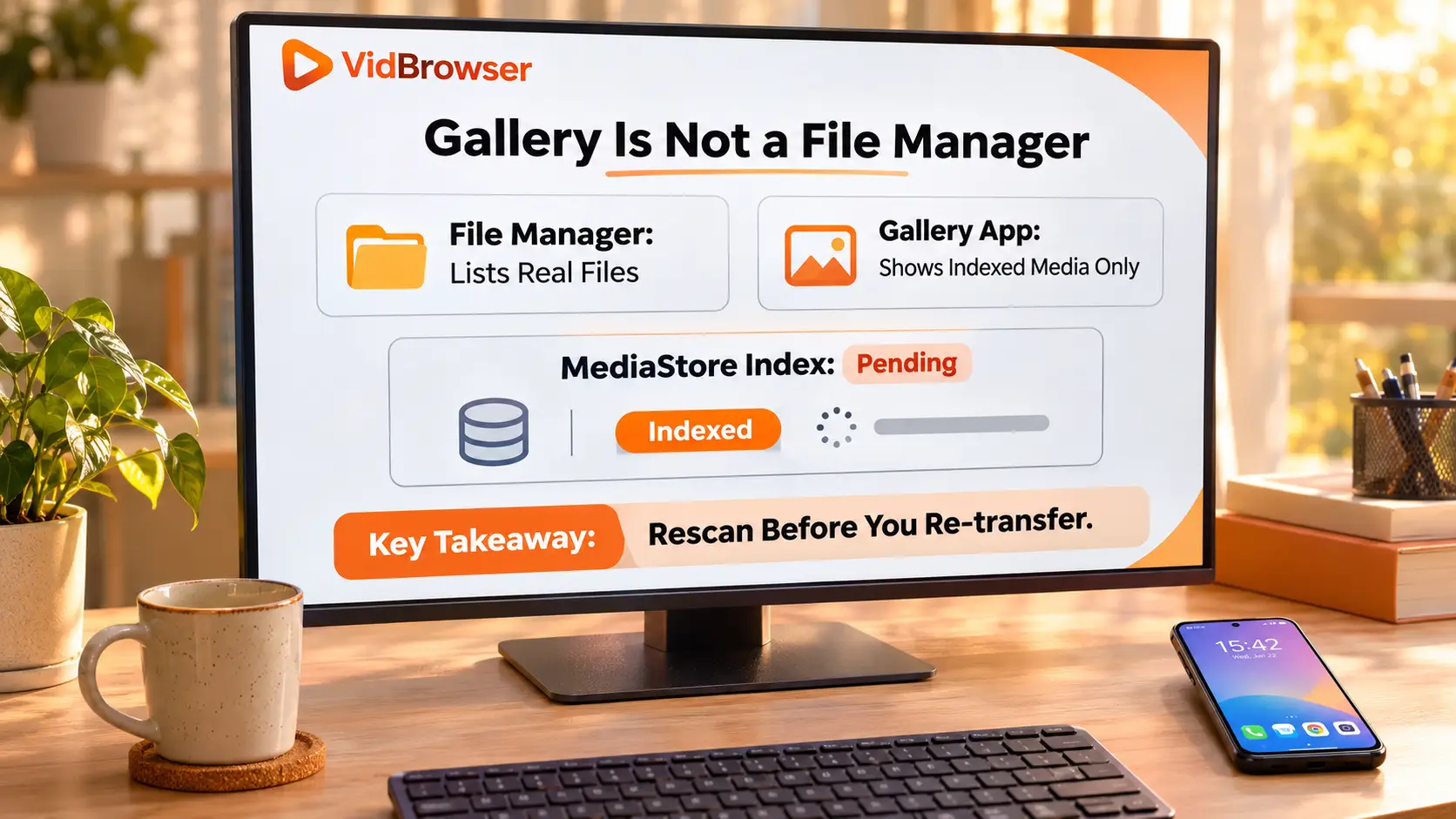
Downloaded video missing from the gallery? Locate it with a file manager first
Before any troubleshooting, use a file manager to confirm whether the file is on the phone at all - this one step splits the problem clean in half.Open a file manager app, search by file name or extension, or look inside the folder you picked during the transfer: if it turns up, the transfer completed and what remains is a display problem - handle it with the next two sections; if it does not, the transfer path itself never worked, and the routes that do work are broken down in the three ways to transfer videos to a phone.
One case is worth ruling out early: offline content inside chat apps lives in the app's own data directory - you cannot browse to it or copy it out, and it is not an ordinary video file you can move around; the where YouTube Premium offline videos go piece covers this boundary. Confirm you are holding a real file before moving on.
Android gallery not showing videos: three causes, checked in order
The file is there but the gallery has nothing - the usual causes cluster in three places, from easiest to most annoying, in that order.
Check scan delay first.Files copied over a cable may not be indexed by the system media library the instant the transfer finishes, and it is most noticeable after batch transfers of large files. The cheapest fix: pull down to refresh on the pictures page of your file manager app to trigger a rescan, or just restart the phone - most vanished-after-transfer cases end right here.
Then check .nomedia.This is an empty file whose name starts with a dot; media scanning skips any folder that contains one, so the videos inside vanish from the gallery while the files themselves are untouched. It often gets added automatically by third party cleaner or privacy apps; the entry point differs slightly across models, so the official Huawei guide is the safest walk-through: turn on show hidden files, find and delete the .nomedia, then refresh once more.
Check location last.A deep folder you created on the fly may never get scanned by some gallery apps. Move the file once into a regular media directory such as Movies or DCIM - the move itself also nudges the system to index it again.
iPhone: the video is in Files, one Save to Photos step short
The iPhone photo library and the Files app are two separate spaces; a video dropped into Files will not show up in Photos on its own, it needs one more Save to Photos pass.The official Apple support page puts the division of labor plainly: what belongs in the library lives in Photos, everything else stays in Files.
The action lives in the share menu: open the video in Files, tap the share button, choose Save to Photos (or Save Video), and a copy appears in the photo library; if the file sits in iCloud Drive, wait for it to finish downloading to the device first, otherwise what you save may still be a placeholder. The menu label varies slightly across iOS versions - go by what your system actually shows.
Format not recognized? Convert to MP4 and transfer again
Whether the gallery shows anything also depends on the system recognizing the file as a video.MP4 and MOV are safe on both ends; WebM and similar formats may fail to import into the iPhone photo library, and some Android gallery apps may show no thumbnail either - behavior varies by system version. When the file is there but the share menu offers no save option, check the format first - converting to MP4 keeps both ends happy, and the MP4 format guide for downloaded videos has the reasoning and tools.
From download to transfer: pick the right destination and the gallery shows it
Troubleshooting after the fact is the harder path - settle the destination at the save and transfer stages on the computer side instead.Take VidBrowser (the official site, desktop app for Windows and Mac) as the example; download to visible-in-gallery is four steps:
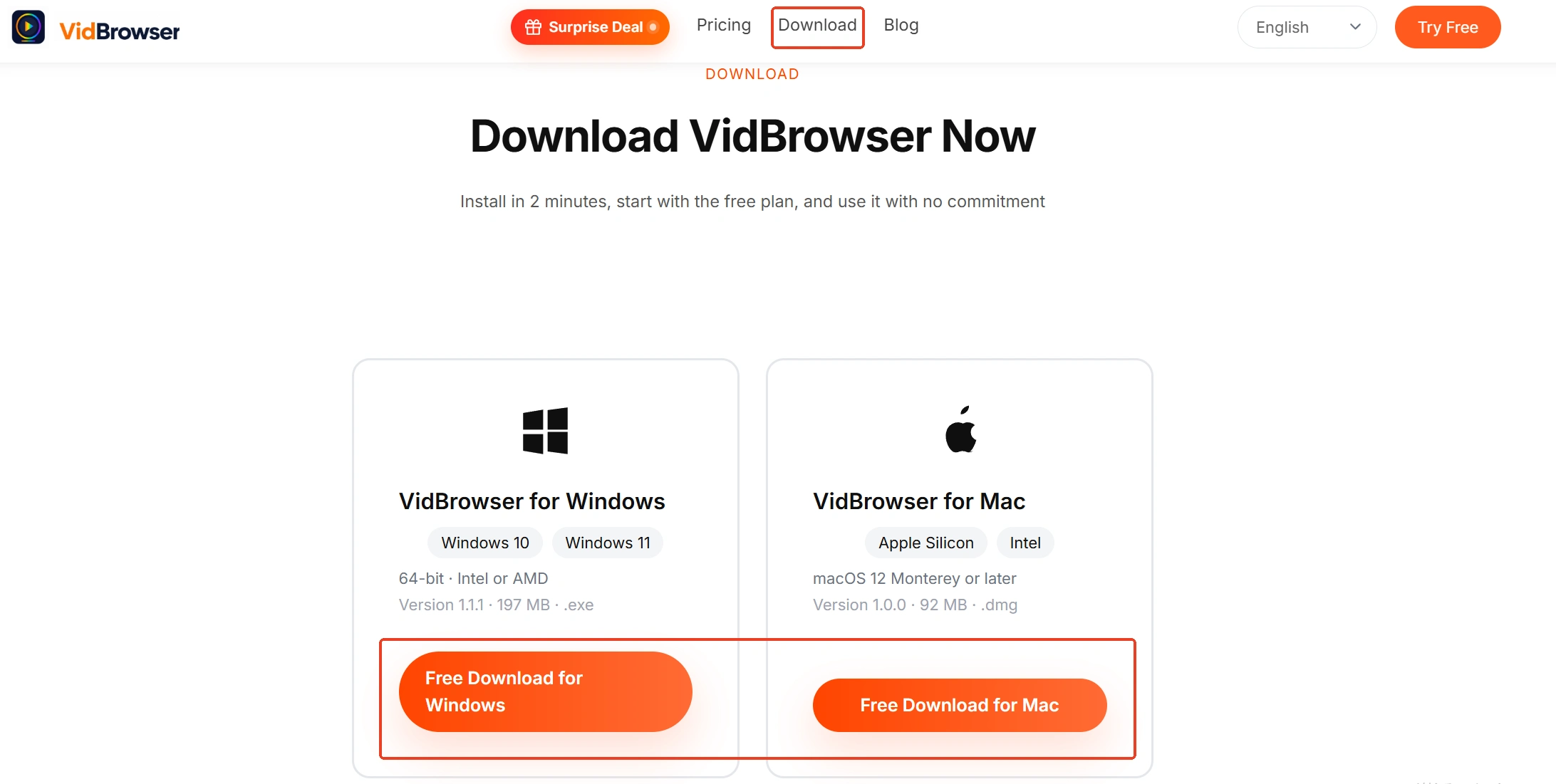
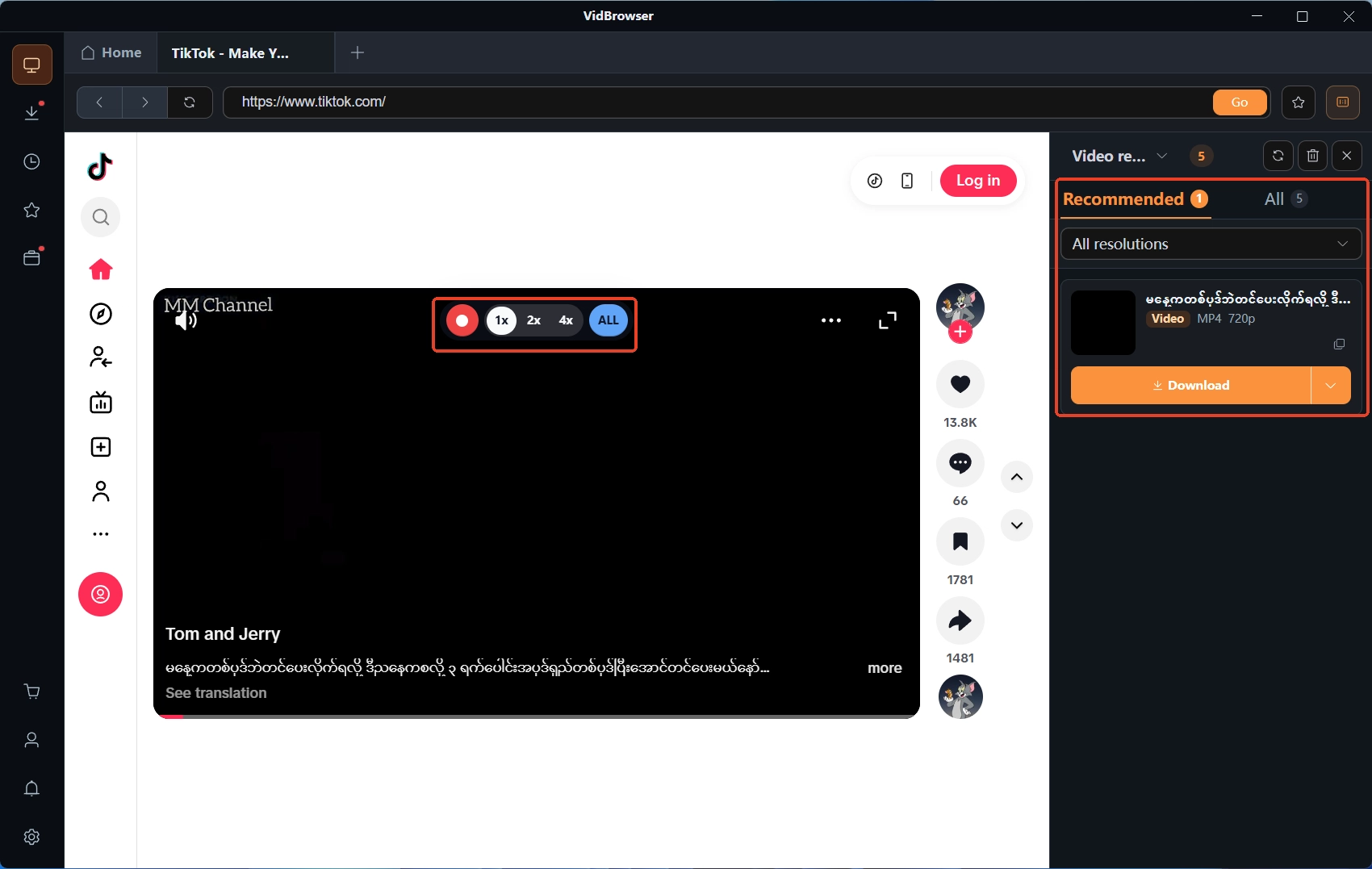
Step 1: Finish the video download on the computer
Open the page holding the video in VidBrowser and play it; for ordinary videos hit Download in the video library panel on the right to save directly; content on subscription platforms that is protected goes through recording first, with the record controls overlaid on the picture, speed selectable, and the interface guides you from there.
Step 2: Use the download history to find the file
Open the download history from the clock icon on the left; every task lists where it was saved, so you pull the file straight from that path instead of digging through folders on the disk. The full locating and filing routine for the computer side is laid out in the where did my downloaded videos go piece.

Step 3: Choose the destination by system before transferring
To Android: drop the file into a regular media directory such as Movies or DCIM, not a deep folder made on the spot; to iPhone: land it in a fixed spot in Files so the photo import afterward is quick.
Step 4: One extra step on the phone after the transfer, then confirm
On Android, pull down to refresh on the pictures page of the file manager to trigger a scan; on iPhone, run Save to Photos on the video once inside Files. Then open the gallery - the file should be there; if it still is not, work back through the two earlier sections in order.
Wrapping up
Not showing in the gallery does not mean the file is gone: confirm with a file manager that it exists; if it does, Android checks run through scan, .nomedia and location, iPhone needs one Save to Photos pass, and an unrecognized format gets converted to MP4. The easier road is doing it right up front - pull files from the download history, transfer into regular media directories, and run the confirming step after each transfer. Once the flow is smooth, both re-transfers and troubleshooting drop off sharply.
FAQ
Why can't my phone find videos transferred through a cloud drive?
What you see in the cloud drive may still be a placeholder record, with the file itself never landed on the phone. Download the video to local storage inside the cloud app first, then run the earlier steps to confirm the gallery has picked it up; iCloud works the same way - let the file finish downloading before you hit Save.
I transferred a batch of videos and the gallery never refreshes - what now?
Media scanning takes time after a batch transfer, most visibly with many or large files; give it a few minutes or restart once and look again. If nothing shows, work through .nomedia and folder locations one by one to make sure the whole directory was not excluded.
Does transferring a video to the phone reduce its quality?
An ordinary file transfer never compresses quality - the file is exactly what it was; the blurry thumbnail in the gallery is just a preview, and playing it opens the original. If quality looks wrong, the source file is the usual suspect - check the downloaded file on the computer side.