
YouTube hides no frame rate switch in the quality menu: smoothness was set at upload
That buttery-smooth tracking in game highlights and skate clips almost always comes from 60fps — yet the same video, once saved locally, turns choppy. The player is not at fault; the saving step most likely lost the frame rate. Many people treat the stutter as a resolution problem and start switching quality tiers, but on YouTube, 60fps and resolution are two independent axes, and mixing them up means no tier choice will bring the smoothness back.
On YouTube, 60fps and resolution are two separate axes
Resolution decides how sharp the picture is; frame rate decides how smooth the motion is — on YouTube the two run on their own axes. The platform has supported high frame rate since 2014: deployment began in June that year and uploads opened to everyone in October (timeline in the history of YouTube), and the official encoding settings list frame rate tiers up to 60. Whether a video is stored at 144p or 2160p is your call, but how many frames each second of that footage draws was fixed the moment the creator hit upload.
- Resolution axis: every tier from 144p to 2160p lives on this axis, and picking one is purely about sharpness;
- Frame rate axis: whether the source runs 30fps or 60fps is decided by the source video, and neither the player nor the quality menu can change it.
The two axes are independent yet constantly conflated: cut a 60fps video to a lower resolution and the picture coarsens while the motion stays smooth; push a 30fps video to 4K and every frame is sharp while motion remains thirty updates a second. For smoothness, first confirm there is a 60 available on that axis.
Two places to verify 60fps on the spot
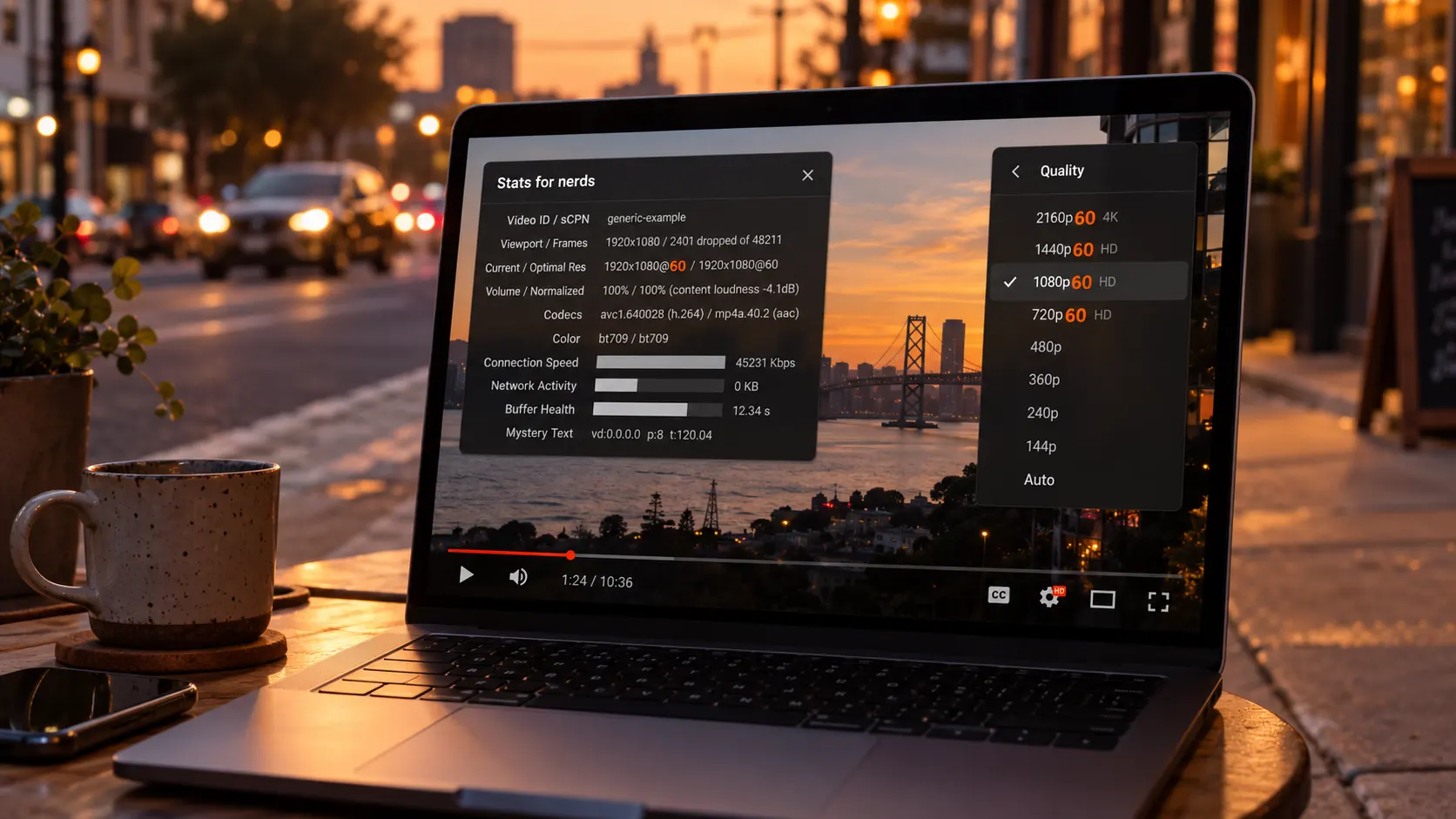
No guessing needed — the player tells you the frame rate itself. The first place is the quality menu: high frame rate videos carry a 60 tag, written as 1080p60 or 720p60; if the menu shows only plain 1080p and 720p with no numeric suffix, the source is standard frame rate. The second place is more direct — open Stats for nerds in the player settings, and the Current / Optimal Res line shows the live frame rate; a normal 60fps video reads 60 or 59.94, and third-party measurements even use it to separate genuine high frame rate from title bait.
One side note: if the fps reading drops mid-playback, it is most likely a temporary downclock from network or device heat, not a change in the video itself — wait a moment, return to the top tier, and the reading comes back. Once you have checked both places, the frame rate profile of any video is fully mapped.
The 60fps a converter hands you has often fallen back to 30fps
The file a third-party converter delivers may not carry the tier you were watching. Two causes come up constantly: first, the stream the converter grabbed was not the one you were playing — YouTube ships video streams in per-tier segments, and grabbing the wrong entry is routine; second, transcoding re-compression — one re-encode gives the frame rate a chance to be cut, and 60fps in, 30fps out is not rare. The segment-and-signature mechanics behind streaming are unpacked in our why streaming videos cannot be downloaded piece, and converters cannot route around it either.
There is a reverse misconception too: hunting a "60fps download" for a 30fps video. Frames the source never had cannot be conjured by anyone — frame interpolation is a heavy engineering task of its own, the platform side does not offer it, and neither does the download side. A video without a 60 tag in its menu simply has no 60fps version to save.
60fps files are noticeably bigger — pick the tier by purpose
At the same resolution, a 60fps entry weighs visibly more than the standard tier. Twice the frames per second means far more picture change for the encoder to record, and gameplay captures and sports clips show it most. If storage is tight, do not blanket-save the top tier: for high-motion videos where smoothness matters, resolution can give way a little; for lectures and interviews with mostly static framing, frame rate was never the point, and the standard tier saves more space. How to plan the resolution axis by scenario is covered in our YouTube 4K saving guide — planning both axes together keeps your drive from filling with dust.
Saving 60fps as it is: grab the stream you are watching
The saving rule for 60fps is one line: take the stream you are playing, let the frame rate follow the entry, and never switch mid-way. Four steps:
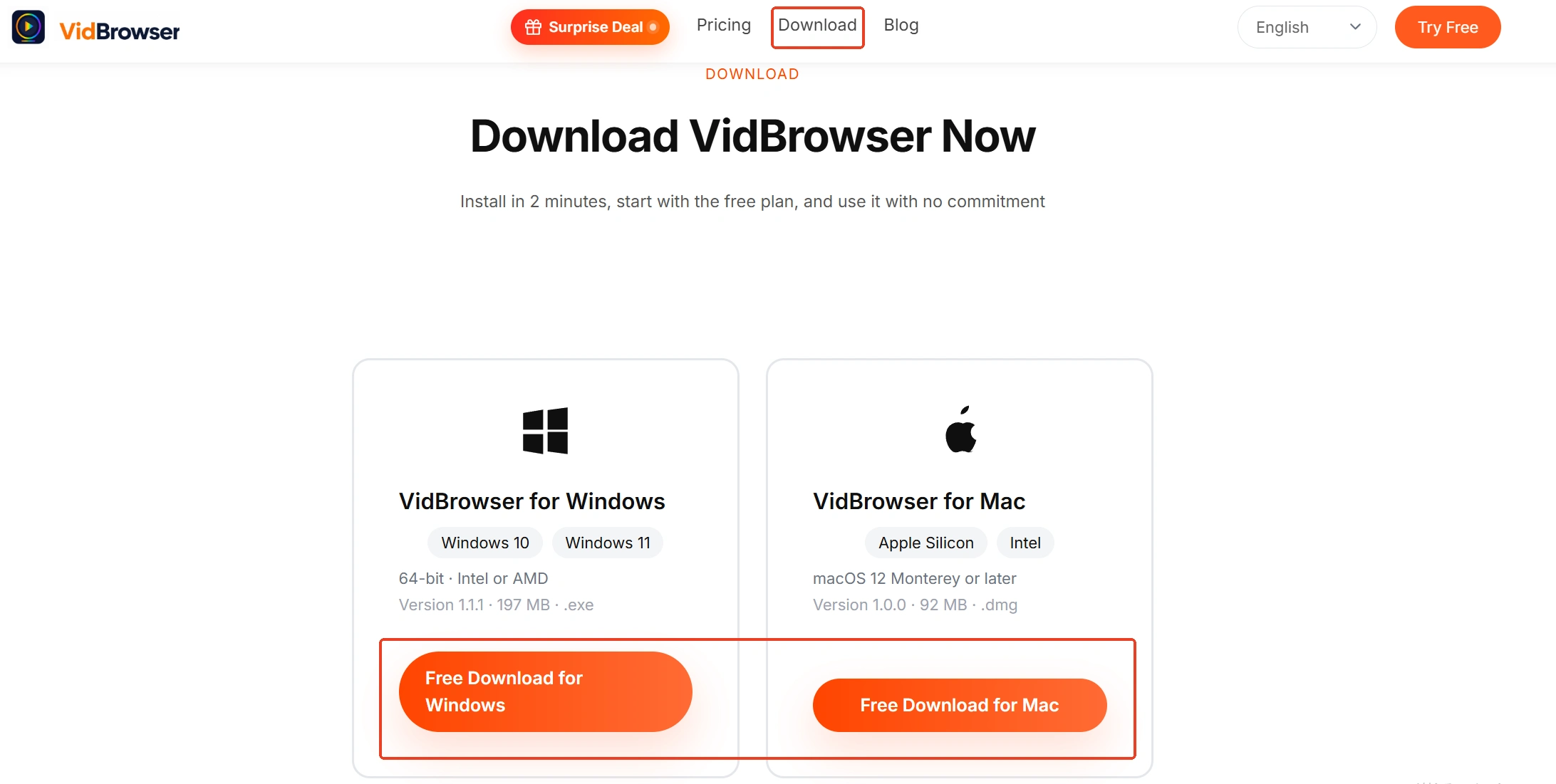
Step 1: Download and install VidBrowser
VidBrowser is a desktop video browser for Windows and Mac that watches videos, trims clips and saves them locally, with built-in download and recording — installation takes a few minutes.
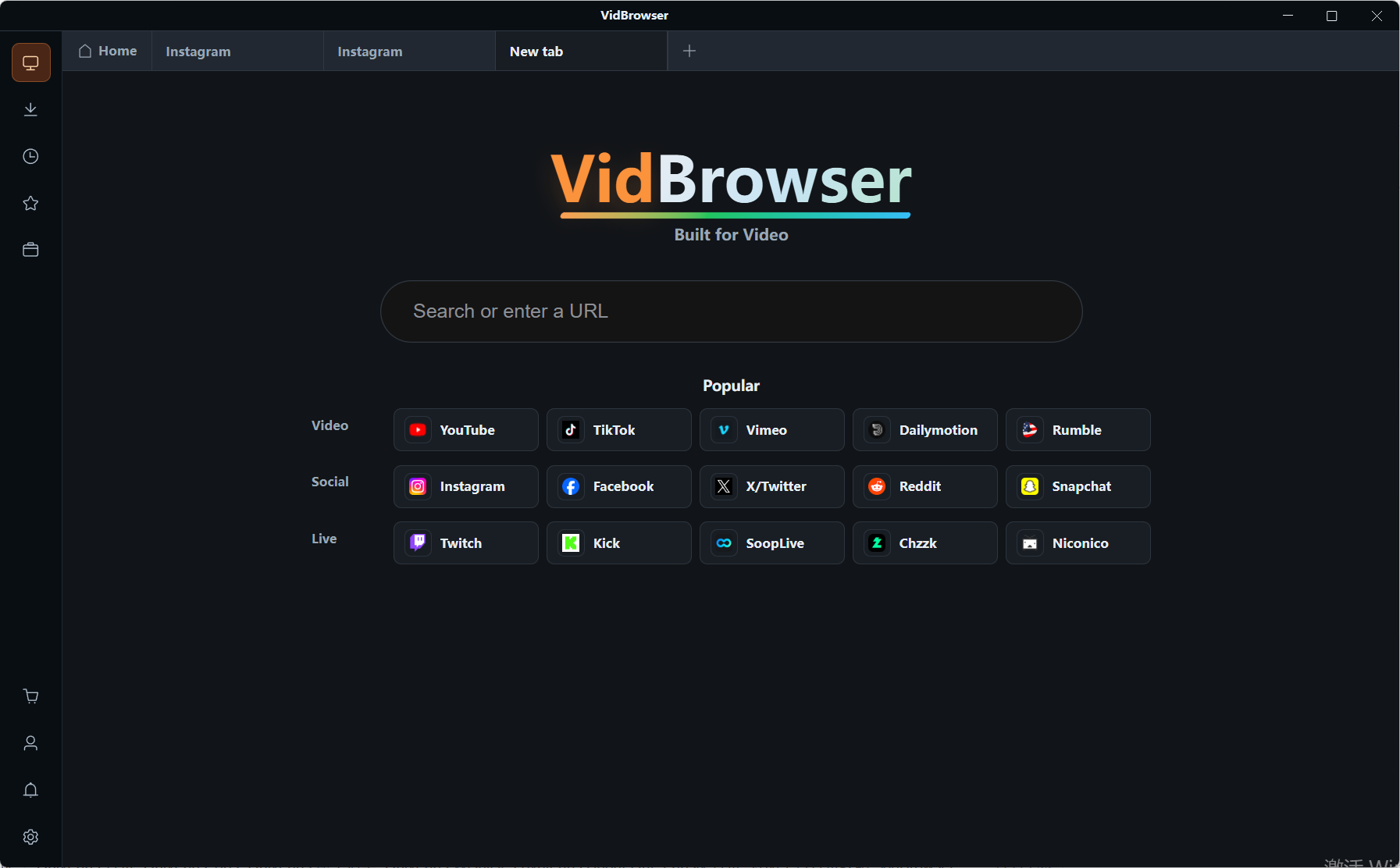
Step 2: Open YouTube in VidBrowser and play
Type the address of YouTube into the address bar, open the video you want and let it play for a few seconds so the panel finishes detection.
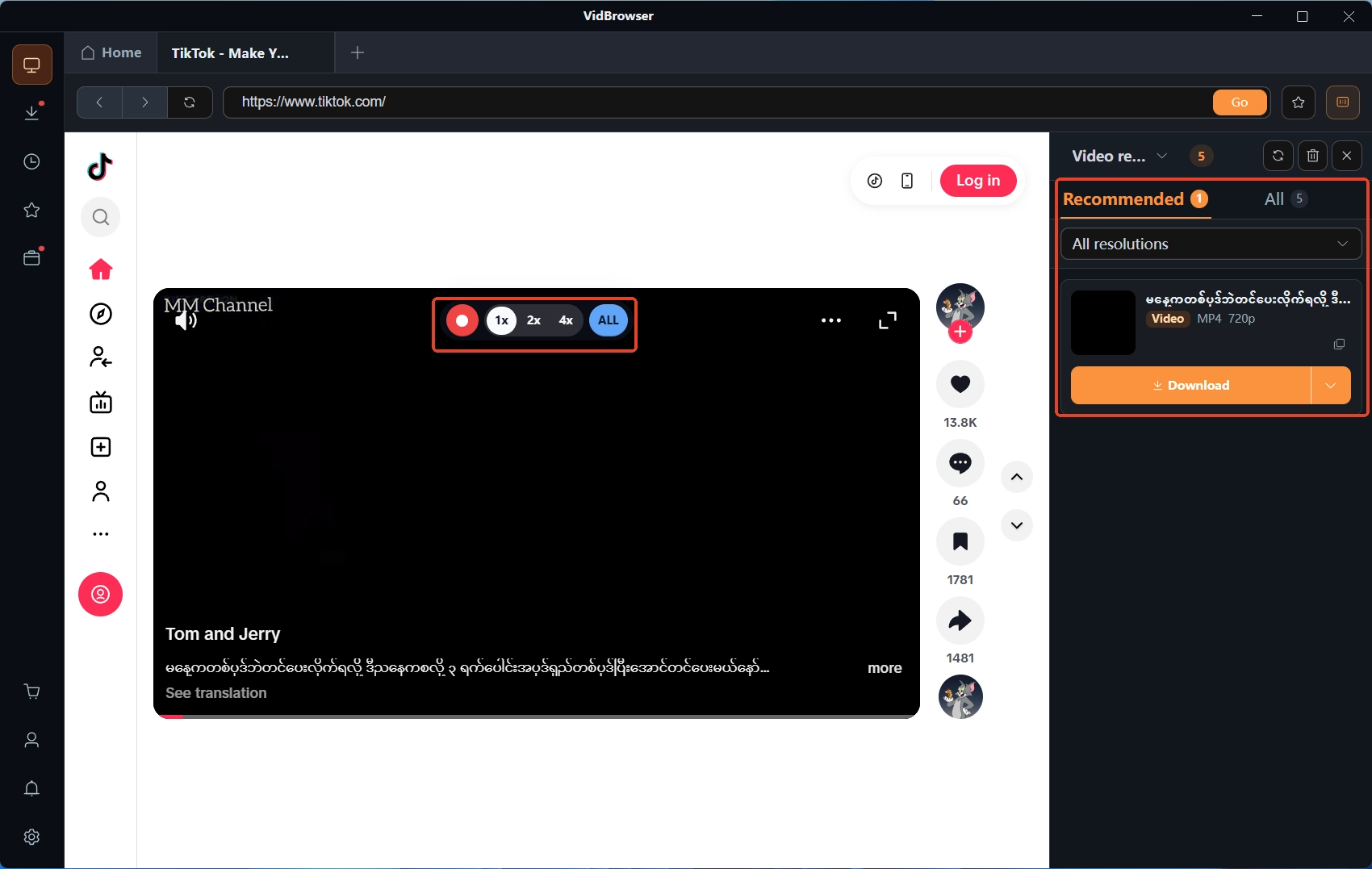
Step 3: Verify the frame rate, then pick the entry
First confirm with the method above that the video really is 60fps; the Video Library panel on the right lists detected resources with the resolution filter defaulting to All resolutions — once filtered, expand the entry next to the download button and pick the one with the highest resolution label and a size that matches 60fps.
Step 4: Download, or record if loading misbehaves
Click the orange Download button to save as MP4. If loading misbehaves or entries refuse to appear, recording is the fallback: hover over the video and recording controls overlay the picture — pick a recording speed (1x real time, or 2x / 4x to finish faster), hit Record All to capture the whole video, and the record button on the left can start or pause at any time. Download and recording history sits under Download History (the clock icon) in the left navigation. Keep publicly published media for personal offline viewing; the terms boundary was read line by line in our YouTube-to-MP3 piece, and the no download without an official route rule governs high frame rate content just the same.
FAQ
My monitor is 144Hz — why is YouTube still 60fps?
Refresh rate and frame rate are different things: the screen redraws 144 times a second while the video delivers 60 frames, and the extra refreshes repeat old frames. Trust the Stats for nerds reading — what it shows is what the source gives, and no monitor or browser setting conjures new frames.
Why does some video have no 1080p60 label?
Because the source is standard frame rate. YouTube transcodes per source, and a 30fps video cannot be pressed into a 60fps tier — the label was fixed on upload day. For 60fps, go to the source: gameplay, sports and drone footage carry the highest high-frame-rate coverage.
Is saving the 60fps version worth it? How much bigger is the file?
Worth it, but count by purpose: at the same resolution 60fps is clearly bigger, and the gap is widest for high-motion content. For re-editing or frame-by-frame slow motion, the extra bytes are necessities; for plain offline viewing on a modest screen, the standard tier saves more space.