The video, without the rest of your screen
Capture the complete supported video playback area directly. You do not need to record your desktop or manually select a screen region. Open the stream and click the recording button to start.
TWITCH STREAM RECORDER · WINDOWS & MAC
Catch it live. Record it clearly. Keep it locally.
A winning play or an unforgettable performance: open the Twitch stream and click Record. VidBrowser captures the complete video itself, rather than your whole desktop. No screen area to select. Record supported live streams in the available HD quality and save the footage directly to your computer.
Free desktop trial · Recording limits depend on your plan · Source quality applies
 VidBrowsertwitch.tv
 LIVE
VidBrowser × Twitch
Record the video itself with a simple desktop workflow. Open a supported stream, click Record and save the result locally—without setting up a full-screen capture.
Capture the complete supported video playback area directly. You do not need to record your desktop or manually select a screen region. Open the stream and click the recording button to start.
Capture supported HD streams for clear gameplay, expressive reactions and stage detail. The source, connection and recording settings determine the final quality.
Stop recording and keep the resulting video on your Windows PC or Mac. Review the saved footage and bring permitted material into your editing workflow.
Live inspiration
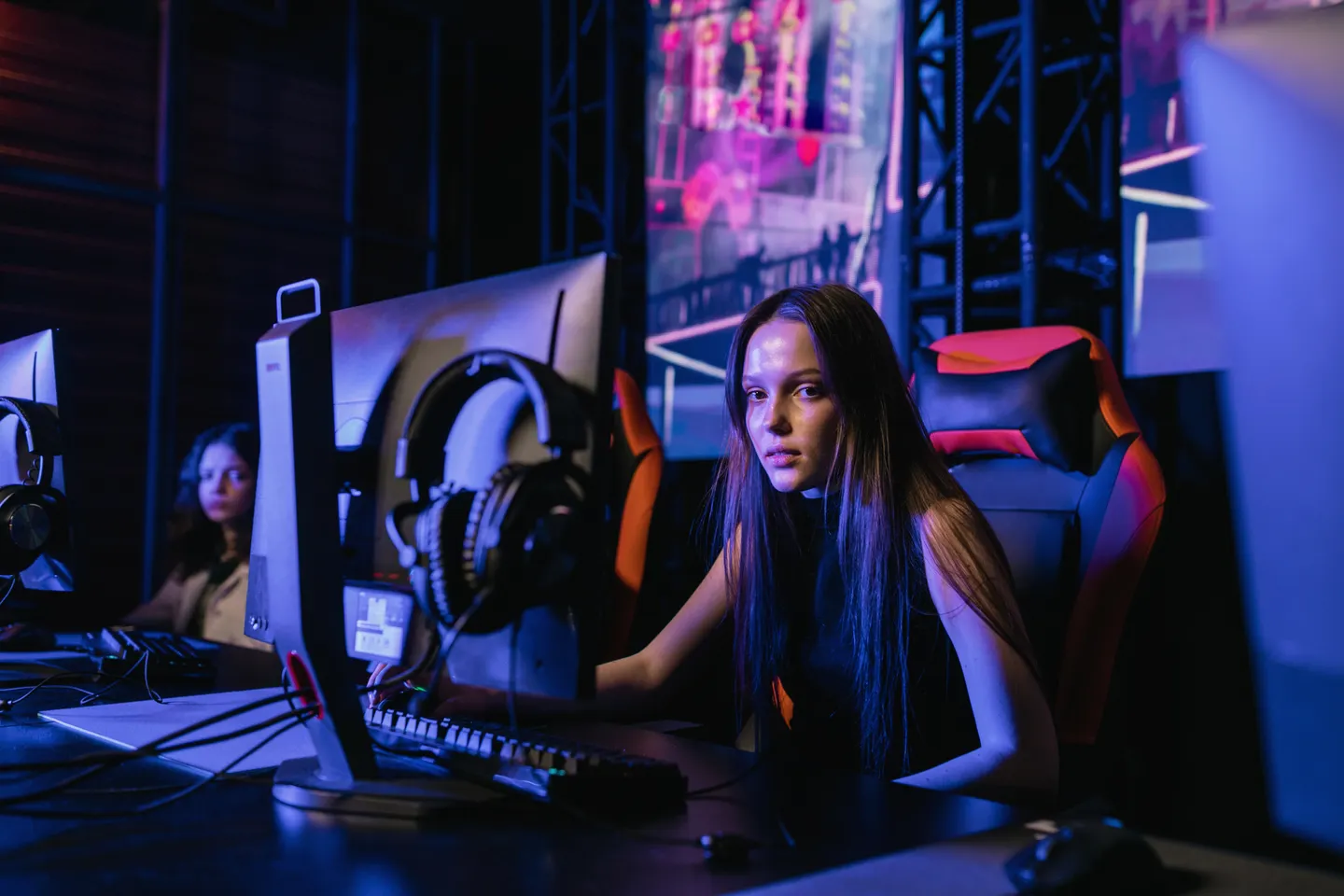
Gameplay, tournament coverage, live performances and creator conversations: collect footage you are authorized to record, without waiting until the stream is over.
Capture a clutch play, a new strategy or a memorable reaction for your own gameplay review and authorized highlight edits.
 LIVE
Keep key rounds, commentary and crowd reactions from esports broadcasts you have permission to record. Review the decisive moments locally.
 LIVE
Save the energy of a live show, a vocal performance or a creative session, with permission from the people and rights holders involved.
 LIVE
Keep useful moments from interviews, creator chats and live demonstrations. Return to the reference when it is time to develop your next idea.
Recording features
For a match, a show or your own live session, open the stream early and check playback. Start a short test recording, verify the saved video and then record the session you need. Keep the app running, your connection stable and enough local storage available.
How to record
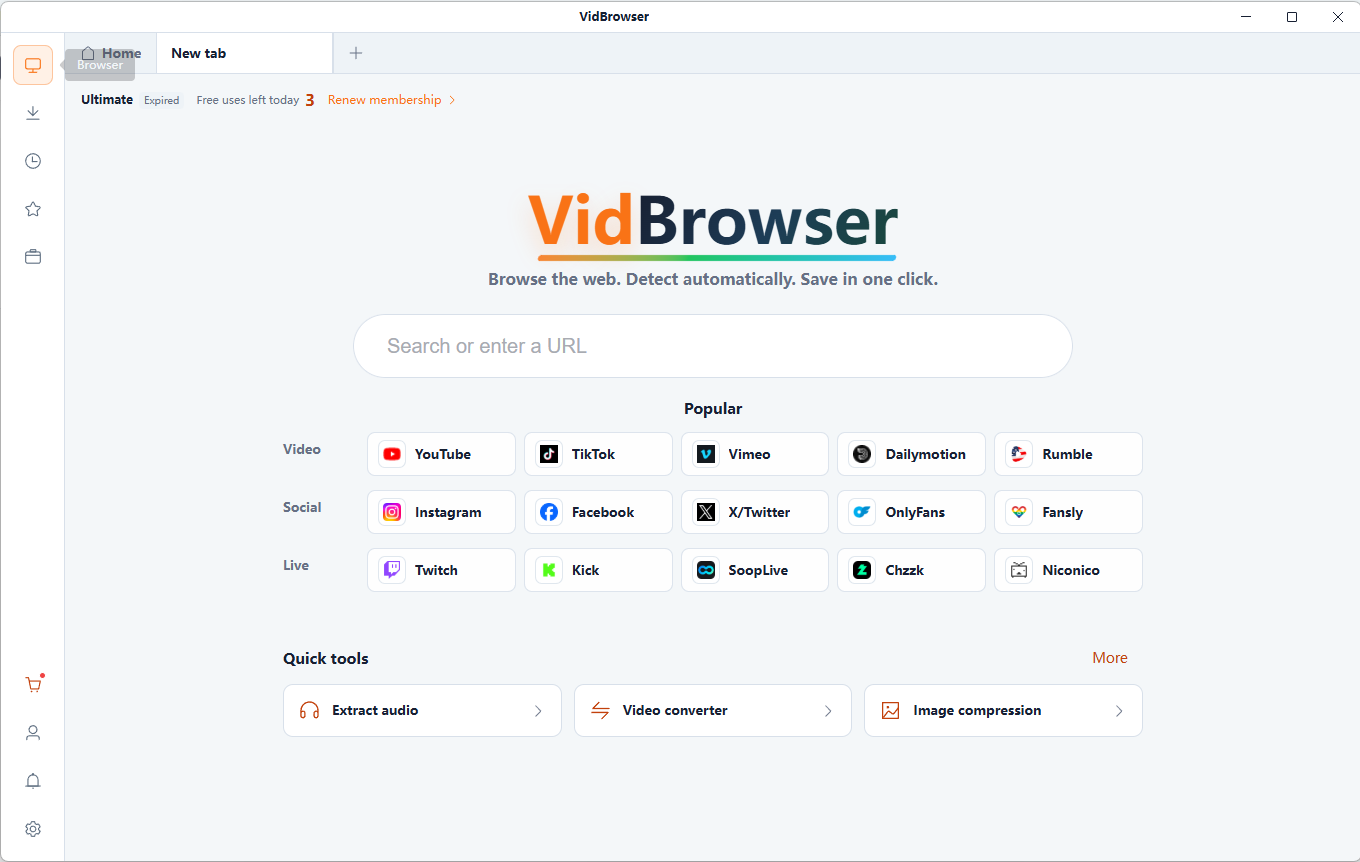
Install VidBrowser on Windows or Mac, open Twitch and play a live stream you are authorized to record. Sign in with your own account if required.
For a supported stream, click Record to capture the video itself. There is no screen region to draw or desktop view to record. Keep VidBrowser running while the live video is captured.
Stop the recording when you have the footage you need. Find the saved file on your computer, check playback and use it in projects covered by your permissions.
Recording begins when you start it. It cannot recover earlier moments that were not captured, and it does not promise automatic scheduling or unattended recording.
Recording takes place in real time. Check your plan's duration limit, free disk space and network stability before a long match or performance.
Record your own broadcasts or content you are authorized to save and reuse. Access to a stream does not automatically give you permission to publish its footage.
Yes. VidBrowser lets you record supported live video sources while they are playing. Open the stream in the desktop app and start recording when the recording option is available. Compatibility can vary by stream.
No. This workflow captures the supported video itself, covering the full video playback area rather than your desktop. You do not need to manually select a screen region. Open the live stream and click the recording button to begin.
HD recording is available when the stream source and supported recording options provide it. The final resolution and smoothness also depend on your connection and device. Recording cannot add detail missing from the source.
The recording is saved locally on your Windows PC or Mac. Check the destination in the app and make sure there is enough space before a long recording.
You can use footage you own or have the necessary permission to reuse. For third-party gameplay broadcasts, tournaments, music and performances, check the relevant rights before recording or publishing an edit.
No. This workflow captures an active session from the time you start recording. Keep the computer awake and VidBrowser running. It does not promise cloud recording, automatic scheduling or recovery of missed moments.
The free desktop plan currently includes 3 combined downloads, recordings or tool uses per day, with up to 5 minutes per recording. See the pricing page for current membership benefits and recording limits. Free desktop trial · Recording limits depend on your plan · Source quality applies
Check that the stream is still live, playback is working, your connection is stable and you have available storage and plan capacity. Platform changes, access restrictions or unsupported formats can prevent recording. VidBrowser does not bypass technical protections.
VidBrowser × Twitch
Turn the next game, match or performance into a local recording you can review and create with. Start with VidBrowser for Windows and Mac.
VidBrowser is an independent product, not affiliated with or endorsed by Twitch. Record and reuse only content you are authorized to use. Stream support, quality and recording duration depend on the source, device and plan.